Import Facility Survey Data From Sidebar
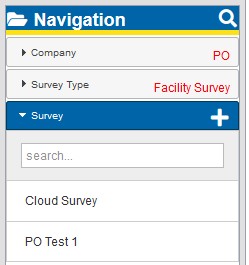
Imported surveys are added to the Survey folder of the Navigation pane.
For cloud imports—including surveys exchanged with trusted external organizations—use Cloud Import in Survey Hub. Survey Hub includes Place Survey (sidebar location) and origin information. See Import Surveys from Cloud in Survey Hub.
Complete the following steps to import facility survey data into PCS Survey Manager:
-
Navigate to the Survey folder of the Navigation pane.
-
Click the
 in the title banner. An Import Survey dialog window displays.
-
To import from disk:
-
Click and drag the .dat and .vls file (or sets of files) to the window. Each set of files must have a unique name. Be sure to drag the files to within the text field. You will see an outline of the files icon when you are within the text field.

Importing Survey Files
-
Click the Include .hist file in upload check box if you want to include this file type with your upload.
-
Click Upload. The .dat file name or names will be listed in the Survey folder in alphabetical order.
Imported Surveys
-
Click a survey file name to open it.
-
-
To import from cloud:
-
Select the survey you want to import.
The surveys most recently uploaded to the cloud are displayed at the top of the list by default.
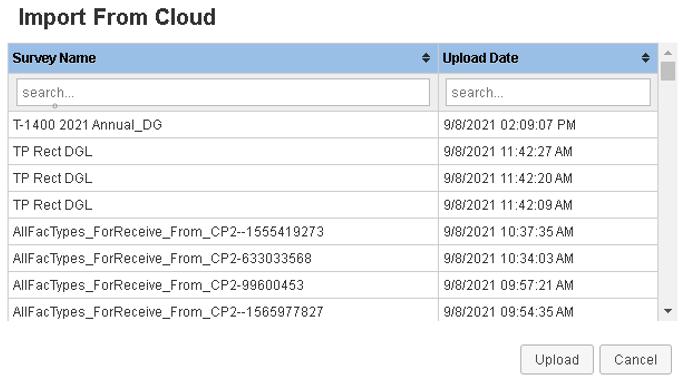
Survey List
-
Click Upload. The file name or names will be listed in the Survey folder in alphabetical order.
-
Click a survey file name to open it.
Imported facility survey data can be added to groups and assigned to PCS Field Data Collector users. See Create Groups and Assign Survey Files and Assign Groups to PCS Field Data Collector Users for details.
-
Survey Folder in Navigation Pane
Import Survey Window