Import Surveys from Cloud in Survey Hub
Use Cloud Import in Survey Hub to bring surveys from the cloud into your Facility Survey Navigation hierarchy.
Users can still import facility survey data from the Navigation pane using the Import Survey dialog. See Import Facility Survey Data From Sidebar. Survey Hub Cloud Import is the recommended path for cloud exchange workflows.
Complete the following steps to import a survey:
-
Open the Facility Survey module and go to Survey Hub.
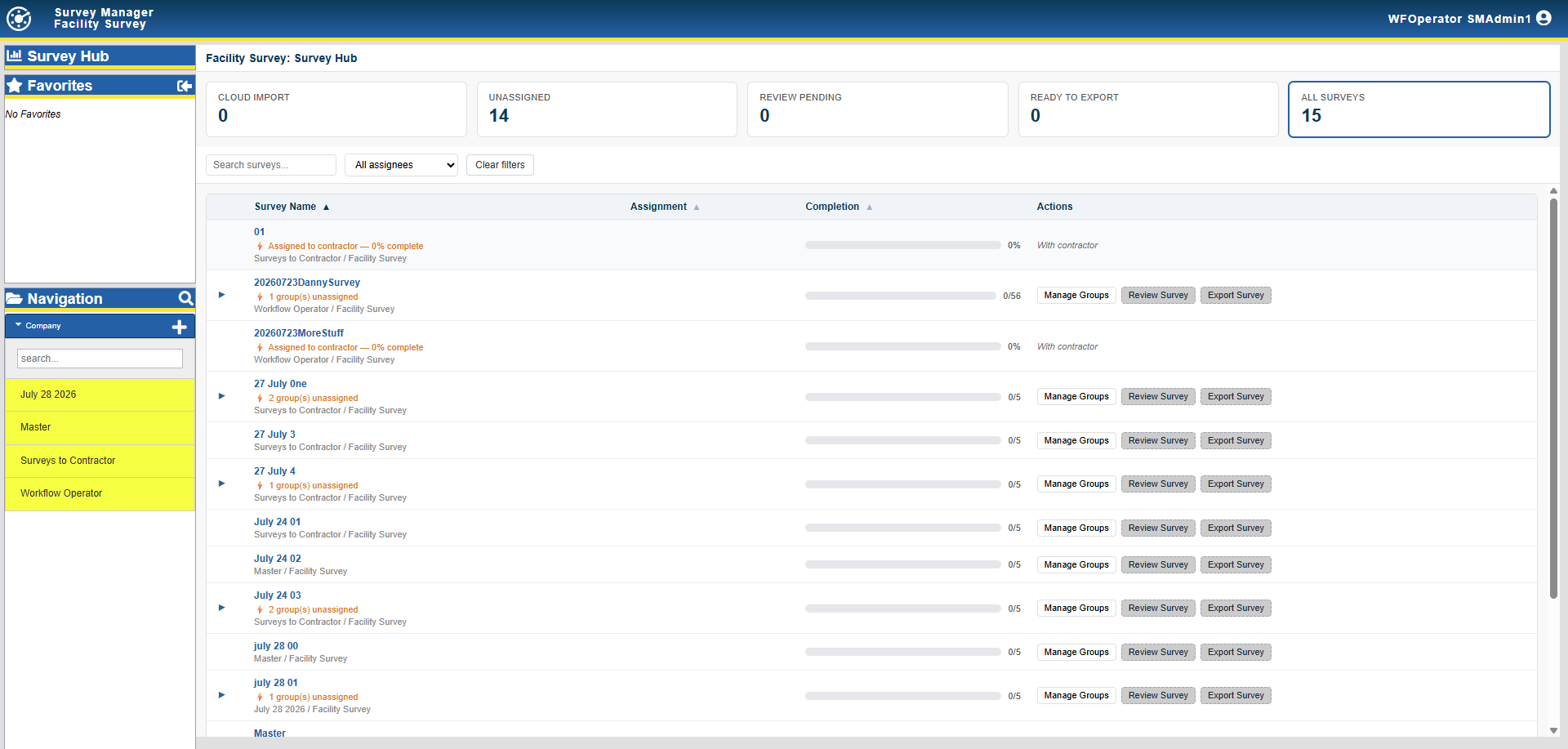
Survey Hub
-
Click Cloud Import (or use the Cloud Import filter/card to focus available imports).
-
Select the survey you want to import. Review the Origin so you know whether the survey came from PCS or from a partner organization. Origin shows where the survey came from (for example, PCS for internal organization imports from PCS, or the internal organization name when an external organization imports assigned work).
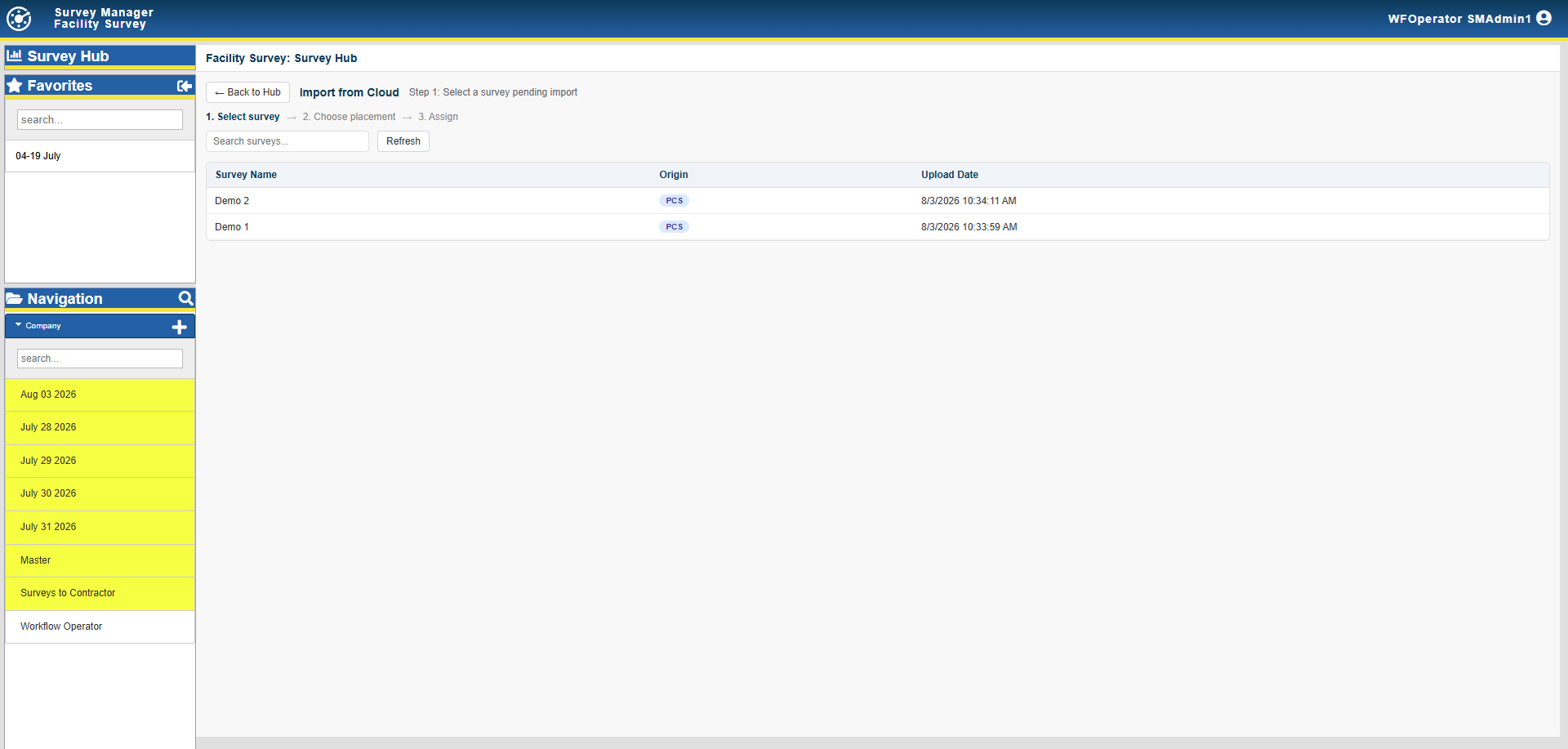
Importable Surveys
Accept or reject (external organizations)
When an internal organization assigns work to an external organization, several additional options are available:
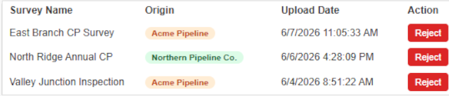
Survey Acceptance/Rejection Menu
-
Accept by importing and placing the survey on the sidebar. This signals In Progress for the external organization so they know the survey was accepted.
-
Reject explicitly and include a reason (for example, missing facilities or missing fields).
-
-
In the Import from Cloud window, expand the company hierarchy and select the sidebar location where the import should be added.
Placement cannot be changed after import. Confirm the company location before you click Import.
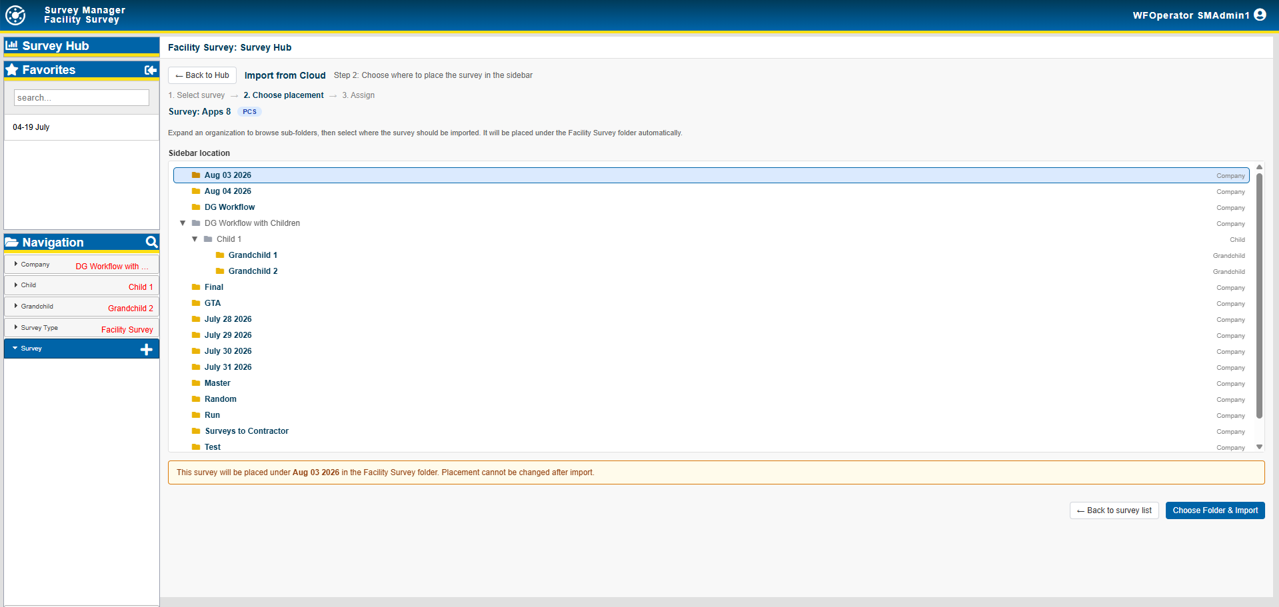
Cloud Import Placement
-
Click Import. The survey is added to the Navigation sidebar and appears in Survey Hub.
-
Surveys can be Split by group or Assigned as Whole:
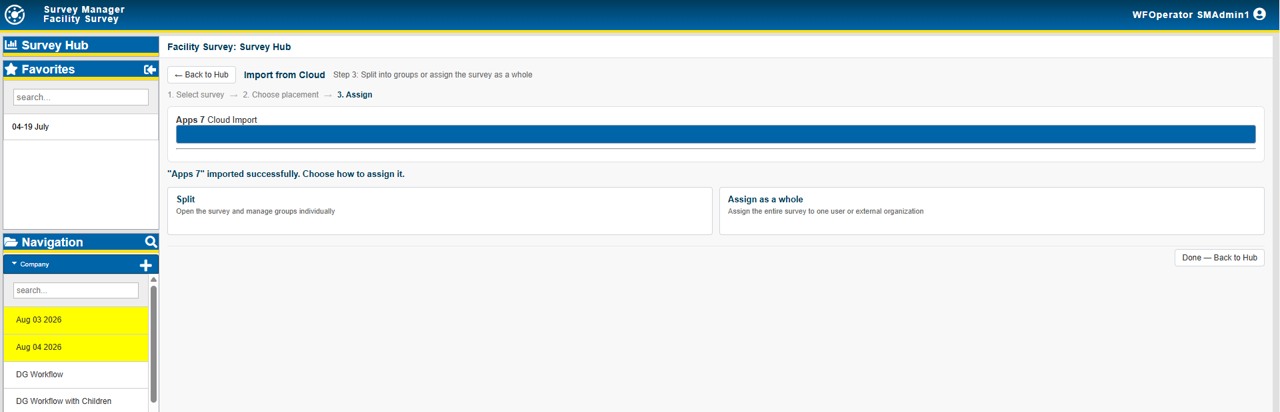
Split or Assign Whole Survey
Splitting the survey opens the groups pane so that individual groups can be assigned separately.
Assign as whole allows the whole survey to be assigned to internal users or external organizations:
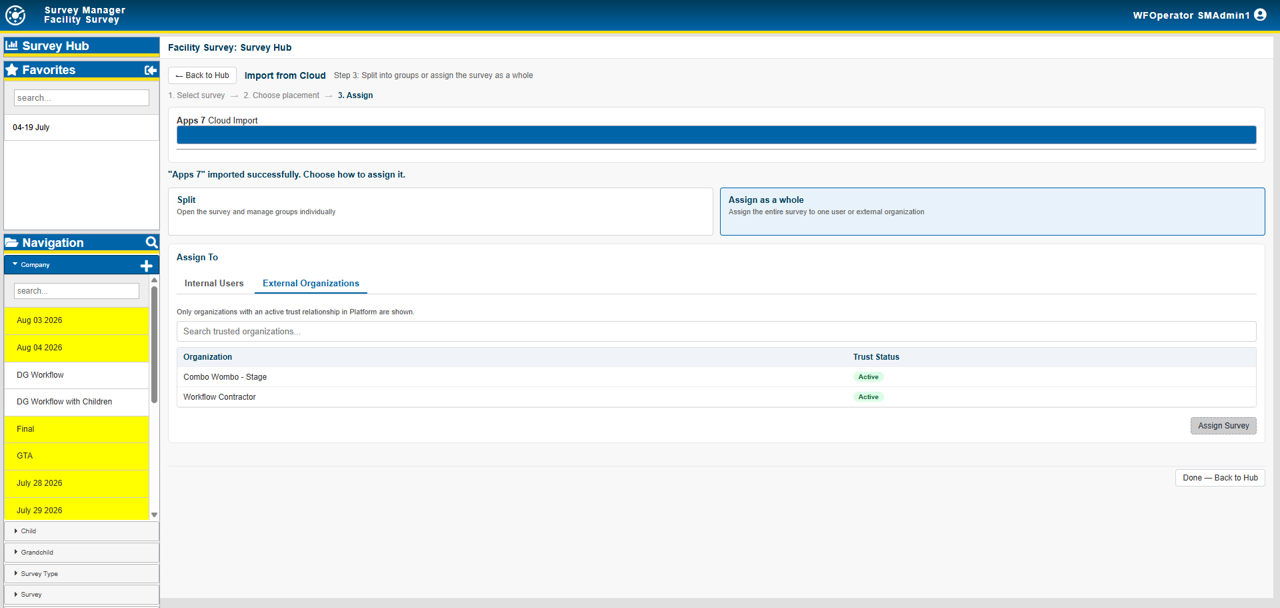
Assign Survey