Eject an SD Card Installed In the Archer 4
Before removing the SD card from the Archer 4, you must first eject the SD card.
You can view an SD card through the device's Settings and eject it with the Files app (not through the PCSField Data Collector app).
After ejecting an SD card, you must mount it before using it again. Refer to Mount an SD Card Installed In the Archer 4 for more information.
If you are using an SD card for data backup, eject or remove the card before uninstalling the PCS Field Data Collector app. Refer to Disaster Recovery for more information about data backup.
Complete the following steps to eject an SD card that has been installed in an Archer 4:
-
Tap Settings.
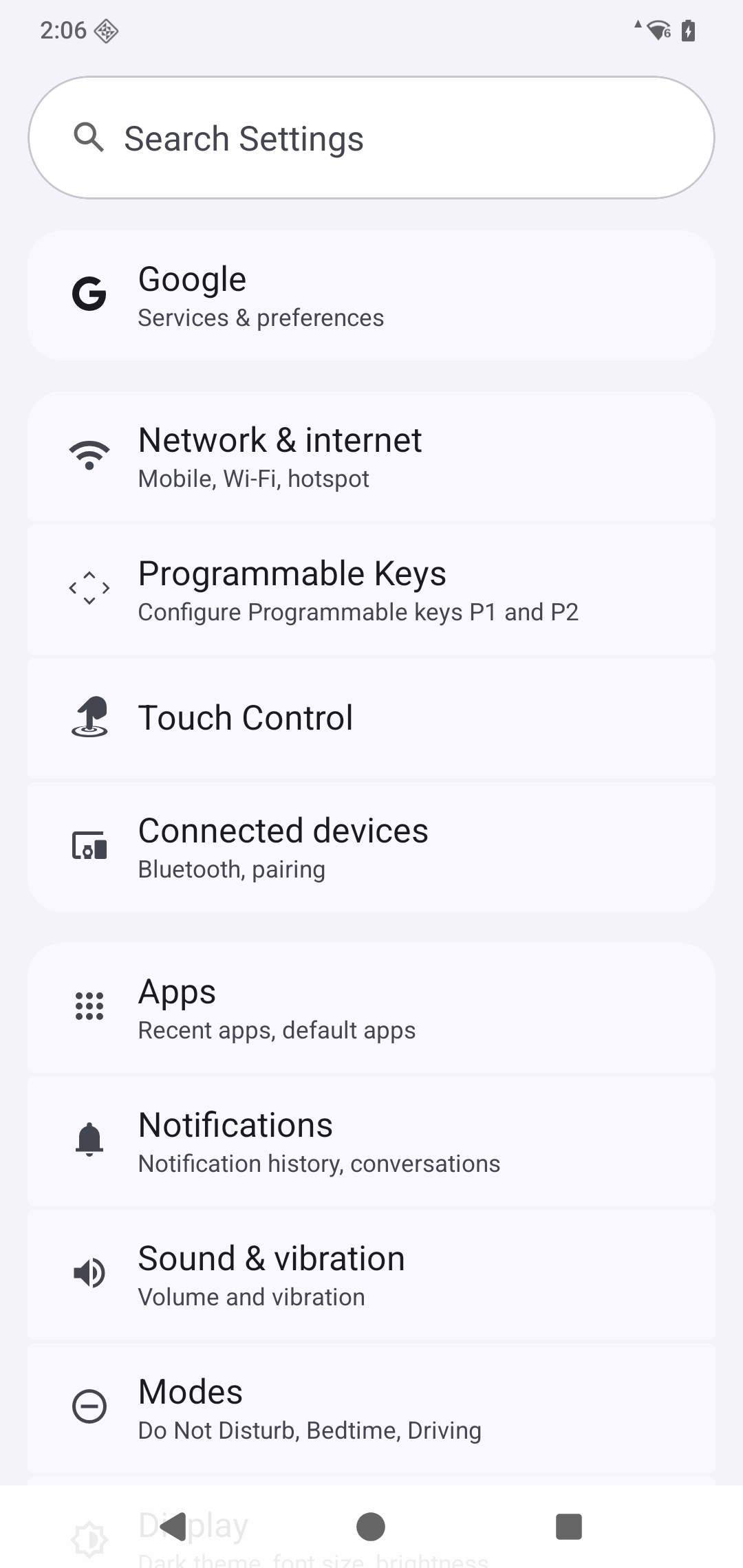
Archer 4 Settings Menu
-
Scroll down to Storage and then tap Storage.
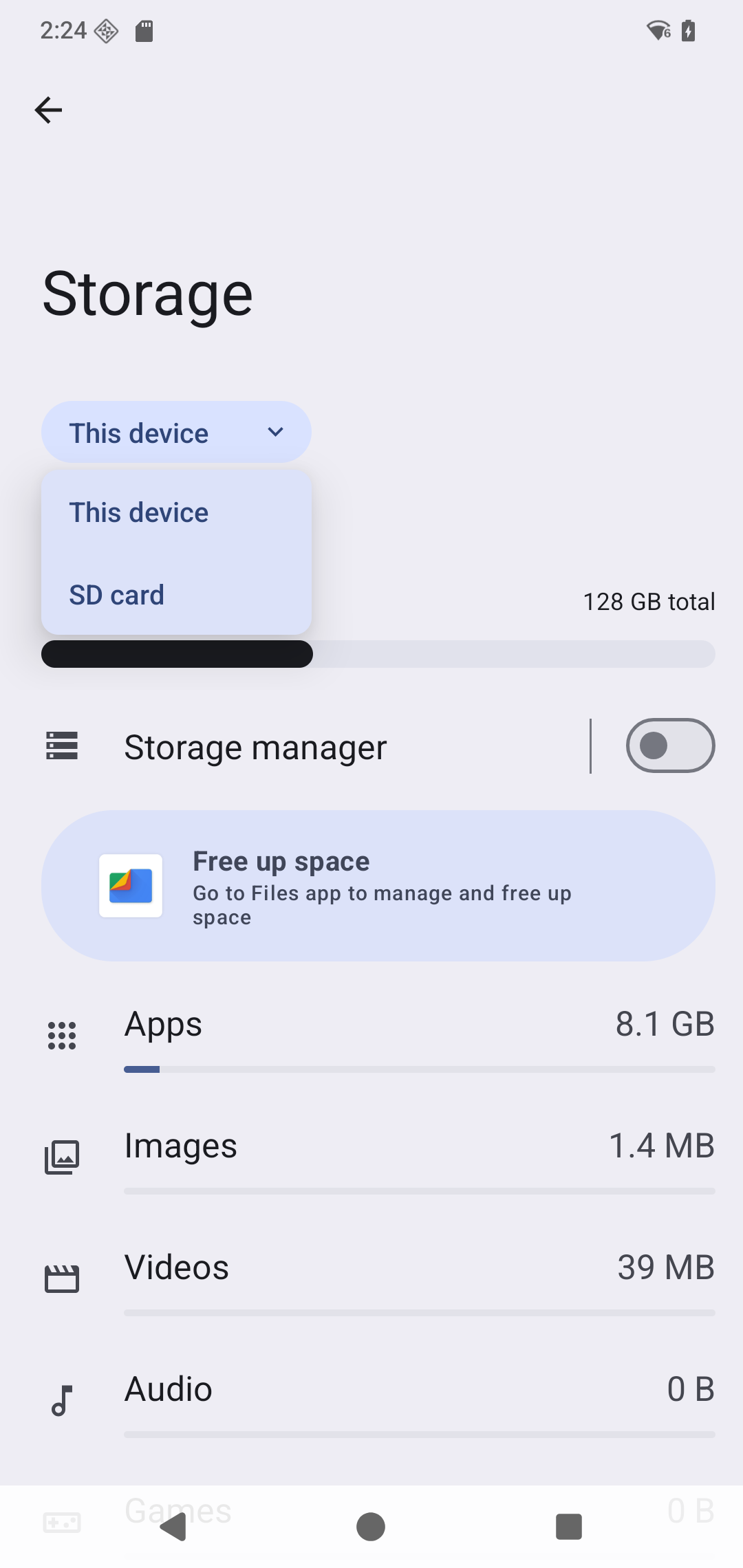
Settings > Storage Window
Your SD card should be listed under the storage dropdown.
-
The arrow next to the SD card indicates that it is still mounted. To eject the card, open the storage location in the Files app and tap the eject icon next to the card name. The window displays a message that the card is in the process of being ejected.
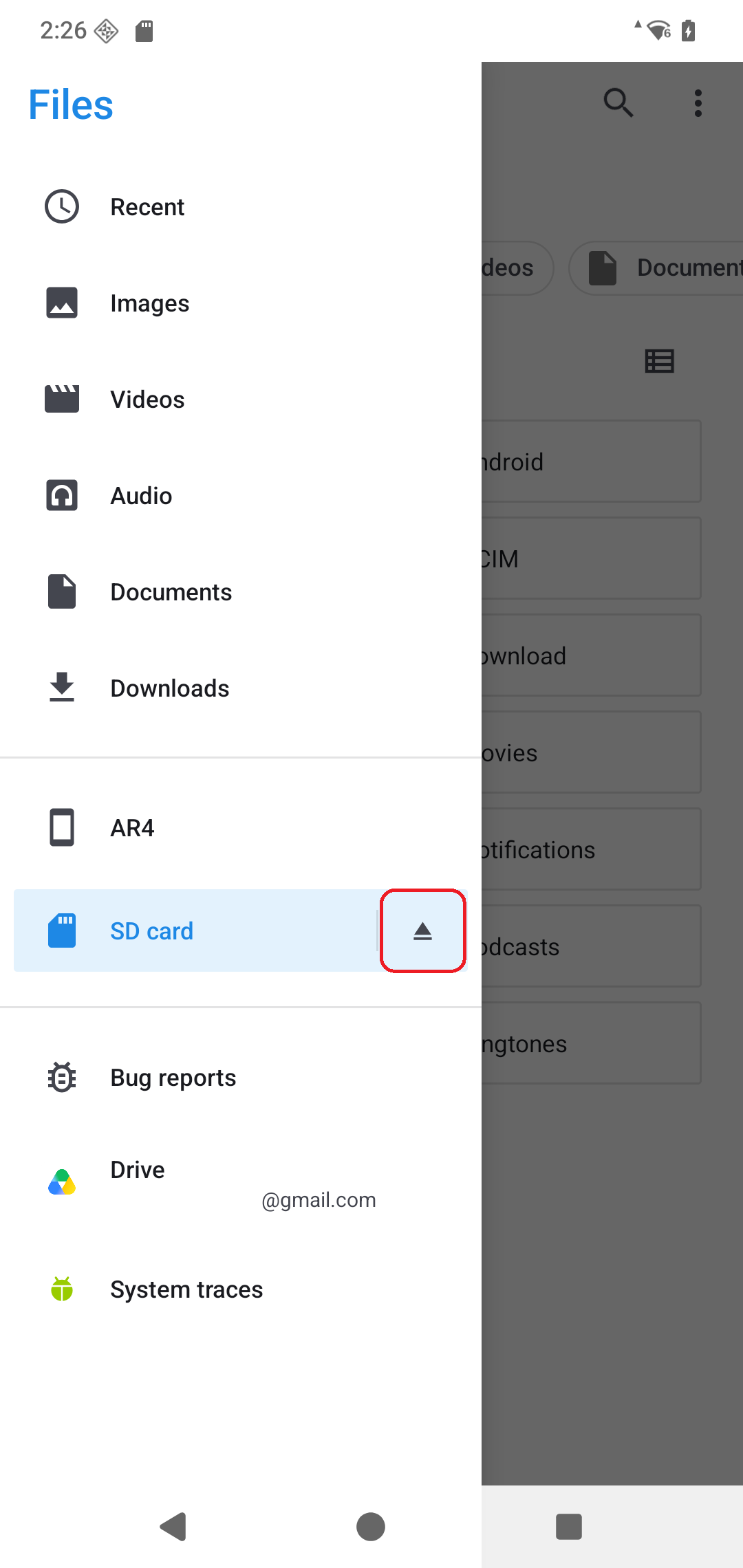
Android Eject Storage Button
-
A pop-up message displays when the SD card has been safely ejected.