Install PCS Field Data Collector App on Archer 4
The PCS Field Data Collector app for the Archer 4 can be downloaded from Google Play.
If you are using an SD card for data backup, eject or remove the card before uninstalling the PCS Field Data Collector app. Refer to Disaster Recovery for more information about data backup.
Complete the following steps to download and install the app:
You do not need to uninstall a previous version of the app before installing the latest version.
-
On the Archer 4, tap the
 Google Play icon.
 -
If prompted to sign in using a gmail account, sign in using an existing gmail account. If you do not have a gmail account or wish to use another email address follow these steps:
-
On your PC, go to google.com.
-
Click Sign In.
-
Click Create Account and select For Myself.
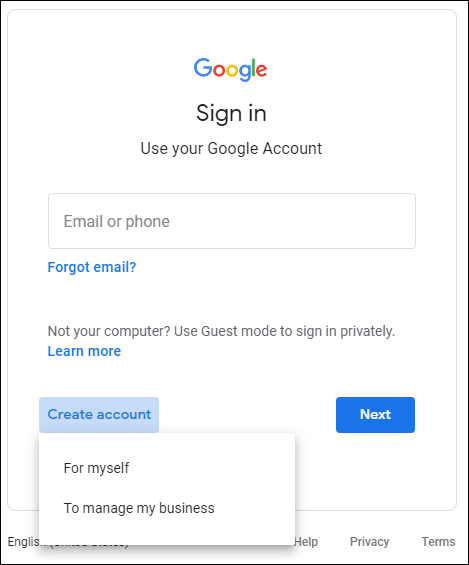
Create Account
-
In the Create Your Google Account window, select Use my current email address instead and complete registration.
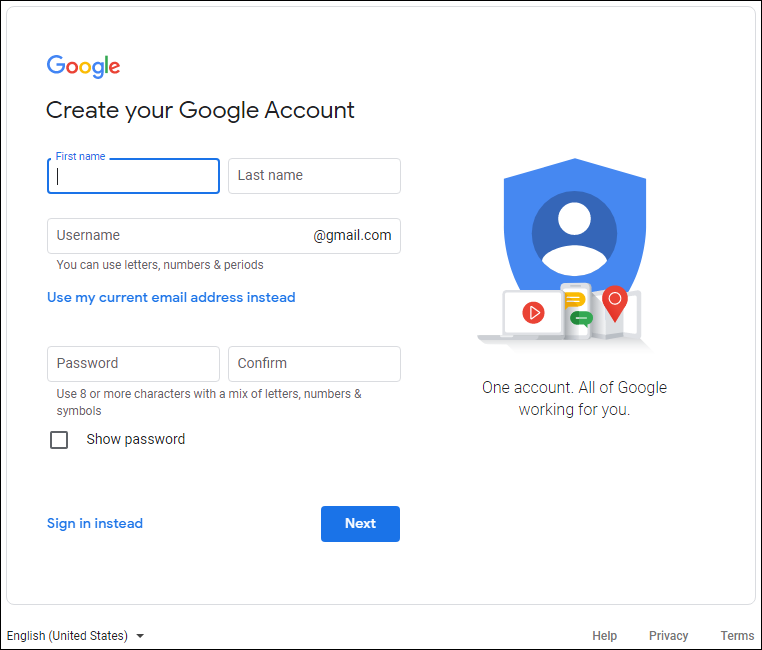
Use My Current Email Address Instead Option
-
Return to Google Play on Archer 4 to continue.
-
-
In Google Play, search for PCS Field Data Collector.
-
Tap Install.
-
To move the PCS Field Data Collector app icon to the Home screen, swipe up from the bottom of the screen to open the Apps screen. Then tap and hold the icon and drag it to the Home screen.
After installing FDC, ensure the GNSS Expansion Pod is enabled. Refer to Enable the GNSS Expansion Pod.