Update Firmware
Before updating the firmware, ensure that you are updating to a newer version. If the firmware version to be applied is older than the unit's current version, this action will downgrade the unit's firmware and may cause application errors. AI generally recommends using the latest version of firmware on all remote monitoring units.
On activation of an RM4211, the firmware is automatically updated. Refer to Activate and Connect Unit for more information about the firmware update process for this unit type.
Complete the following step to update the firmware on any Bullhorn Tools Mobile supported unit type:
-
Tap
 to open the Settings screen.
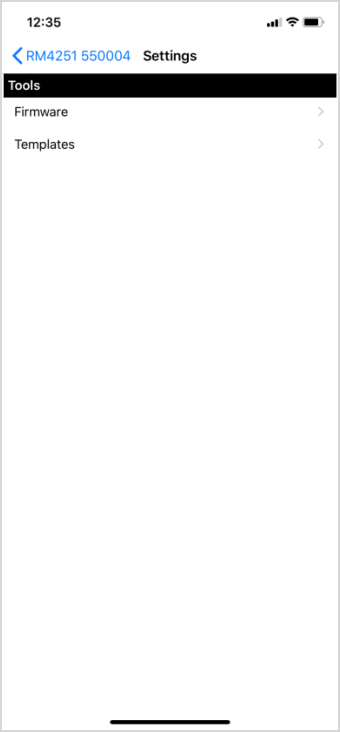
Settings Screen
Some unit types will also include Reading settings on the Settings screen.
-
Tap Firmware Update to open the Firmware Update screen.
-
After the firmware has been uploaded, tap OK in the Apply Firmware dialog box.
The firmware update process may take several minutes.
-
When the firmware update is complete, a dialog box displays with instructions on completing the update. Tap OK.
-
The unit will disconnect and stop transmitting. When the app returns to the Search screen, re-activate the unit and connect to Bullhorn Tools Mobile to continue.