Activate and Connect Unit
Complete the following steps to active the unit's Bluetooth connection and then connect the unit to Bullhorn Tools Mobile:
-
Swipe a magnet across the access point on the unit (marked with an arrow on the enclosure). A red light flashes to indicates that the unit is waiting to pair with a Bluetooth-enabled device.
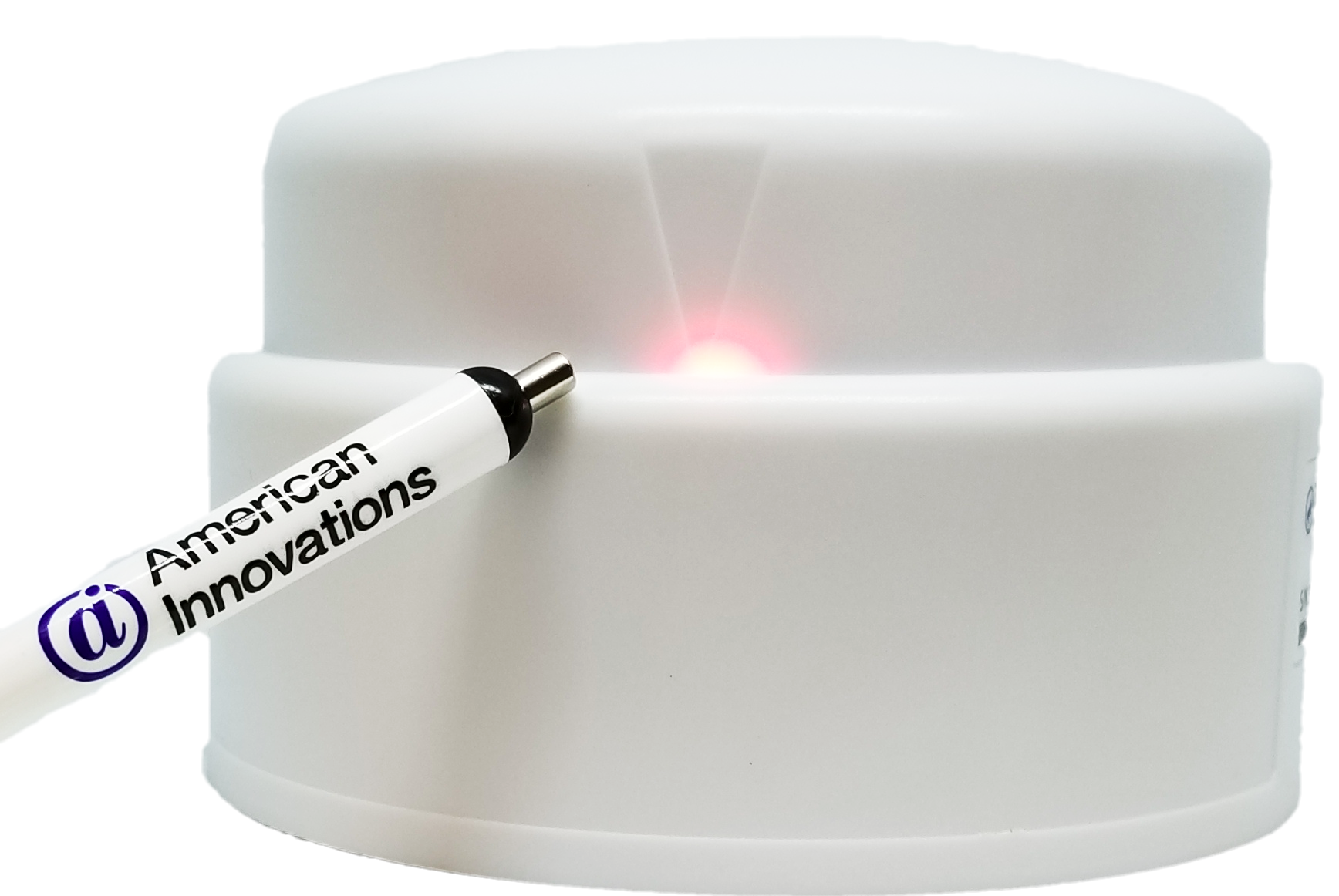
Unit Activated
-
On your mobile device, turn on Bluetooth and then open Bullhorn Tools Mobile. Any unit that is currently activated will display on the screen. Refresh the screen (swipe down) if your unit does not display.
-
Tap the name of the unit you want to configure and then OK in the confirmation dialog box.
-
For RM1250, RM3250, and RM4210 units — tap Refresh (or swipe down) to update current unit values. Tap Auto Refresh to enable the app to automatically refresh screens every five seconds.
-
For RM4211 units only — if the unit’s firmware is not the most current, Bullhorn Tools Mobile will automatically begin a firmware update. The following message will display. Complete the following steps after you see this message.
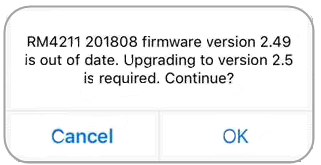
RM4211 Firmware Update Message
-
Click OK to continue.
-
After the firmware update has completed, a final message displays.
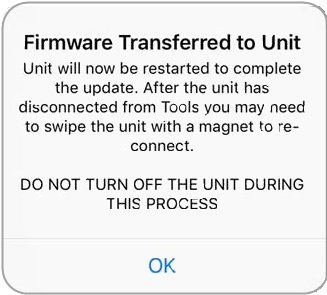
Firmware Transferred to Unit Message
-
Click OK. If the unit does not automatically connect to your device, swipe the activation point on the unit with a magnet.
-
On the Search screen, tap the name of the unit and then OK on the pop-up message window.
-
Optionally, tap Auto Refresh toggle to enable the app to automatically refresh screens after completing an action.
-