Connect the DVM2130 to the Archer 4
The DVM2130 is connected to the Archer 4 using a Bluetooth connection or with a USB-C to USB cable.
Connecting to the Archer 4 with a USB-C to USB cable should only be used to charge the DVM and update its firmware. PCS Field Data Collector does not support USB connections for DVM readings on Android.
Complete the following steps to connect the DVM2130 to the Archer 4 using Bluetooth:
-
Ensure that the DVM2130 is fully charged. Refer to DVM2130 for more information about the light indicators.
-
Ensure that the Archer 4 has Bluetooth enabled. Bluetooth settings are found in the device Settings.
Do not use the built-in Android Bluetooth connection dialogue to connect a DVM to the Archer 4. If the DVM has been connected using the Android Bluetooth menu, it may be necessary to disconnect the DVM by following the steps at Forget a DVM from Android Bluetooth Menu.
-
Open the PCSField Data Collector app and tap DVM from the home window.
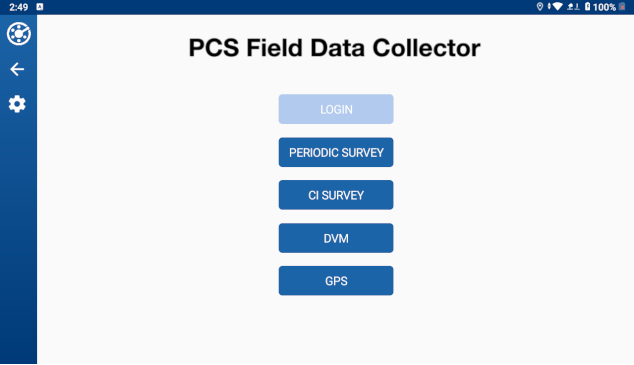
PCS Field Data Collector Home Window
-
Tap Connect in the connections window. If more than one DVM appears, be sure to select the correct one.
If the DVM does not show in this window, refresh the device list. Tap the Scan for Devices button or swipe down to refresh the device list.
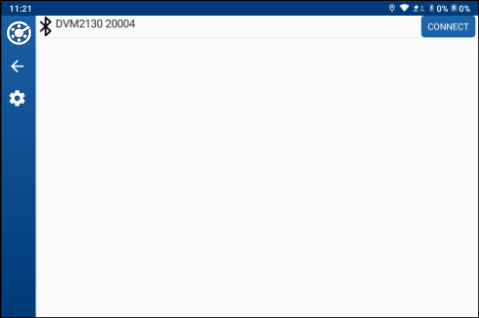
DVM Connect Window
When the GNSS Expansion Pod is enabled on the Archer 4, PCS Field Data Collector uses GPS data from the pod with priority over the DVM GPS source. DVM readings are still captured through the Bluetooth connection.
Refer to Digital Voltmeter (DVM) for more information on setting up the DVM and graph.