Edit a Standard or Dynamic Picklist
After creating an standard or dynamic picklist, you may edit these picklists to add, delete, or edit the item information.
Complete the following steps to edit either a standard or a dynamic picklist:
-
Click Tools > Field and UDF Customizations to open the Field and UDF Customizations window.
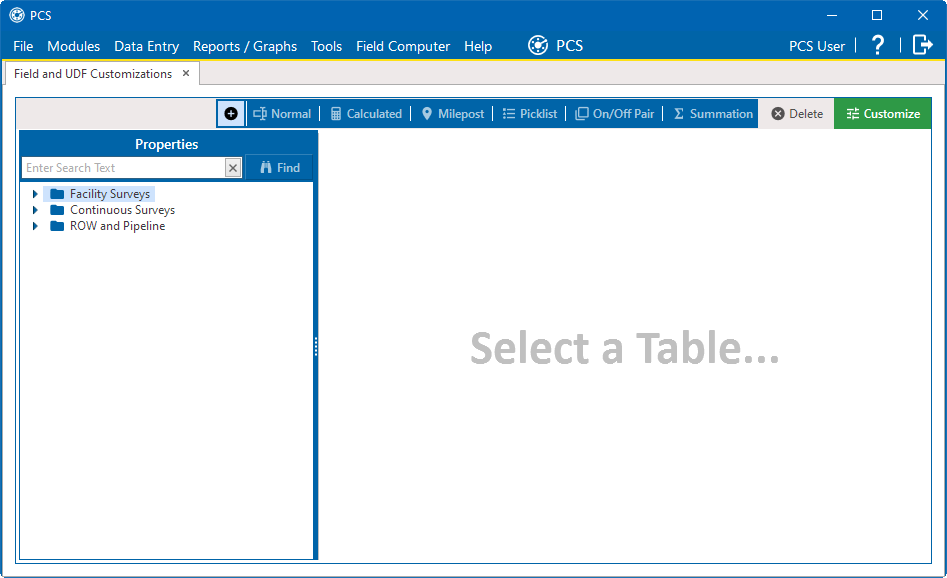
Field and UDF Customization Window
-
Select a table in the Properties pane that includes the data entry grid to which you want to add a UDF.
Click the Properties header bar to collapse the Properties pane to expand the view of the grid. Click the bar again to expand the Properties pane.
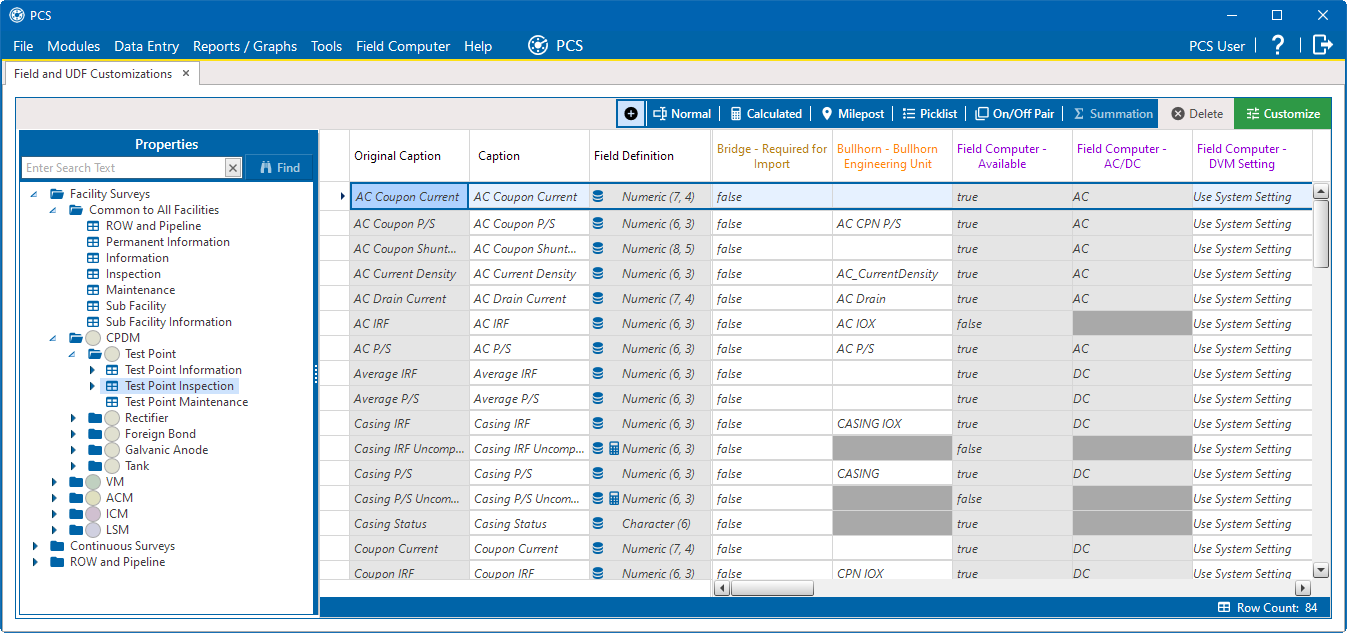
Field and UDF Customizations
-
Select the picklist UDF you want to work with in the grid of the Field and UDF Customizations window.
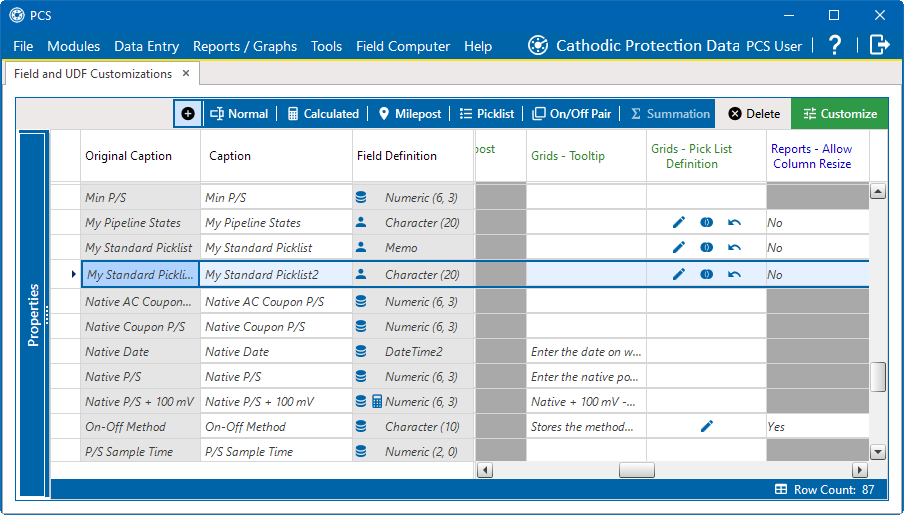
Selected Picklist UDF on Grid
-
To delete the picklist UDF, click
 Delete in the toolbar of the Field and UDF Customizations window. Then click
  Yes if the Confirm Delete window.
 -
To delete, edit, or add data items in a picklist UDF, slide the scroll bar at the bottom of the grid until the Grids - Pick List Definition column displays.
Edit Icon for Selected Picklist UDF
-
Click the
 edit icon to open the Edit Picklist Field window.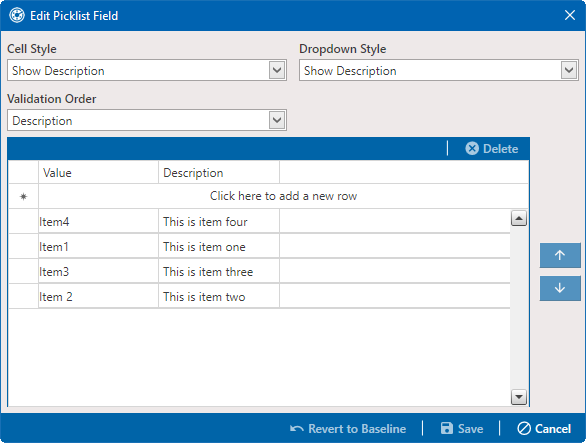
Edit Icon for Selected Picklist UDF
-
To delete a data item, select the item and then click
 Delete. Then click Yes if the Confirm Delete window.
 -
To edit a data item, select the item and edit as needed.
-
To add a data item, click the row with the message Click here to add a new row and enter a Value and Description.
If you are adding a data item in a child dynamic picklist, refer to Add a Child Picklist and Mapping Data Items for instructions on how to map the new item.
-
-
Click
 Save to save settings and close the window.