How Do I Resolve an Expression Evaluator Error
An expression evaluator error may be seen when trying to load the data grid, after synchronizing data, or when trying to open a report.
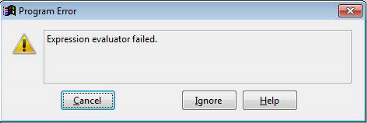
Expression Evaluator Failed Program Error
There are two ways that you can use to resolve this error: a quick resolution that a supervisor can perform or a collaborative method that involves both a supervisor and a PCS user.
Quick Resolution
With the quick resolution, a supervisor can log into PCS and quickly fix the reports that may have caused the problem. To resolve the error, the supervisor should log into PCS and do the following:
-
Click Help and select Command Window from the menu.
-
Click OK when the warning appears that only American Innovations Technical Support should perform these tasks.
-
Enter the following text in the Command Window to find unnamed reports:
use dureport
brow norm -
The resulting table lists the names and descriptions of reports. Find the rows with an empty value in Dupname column.
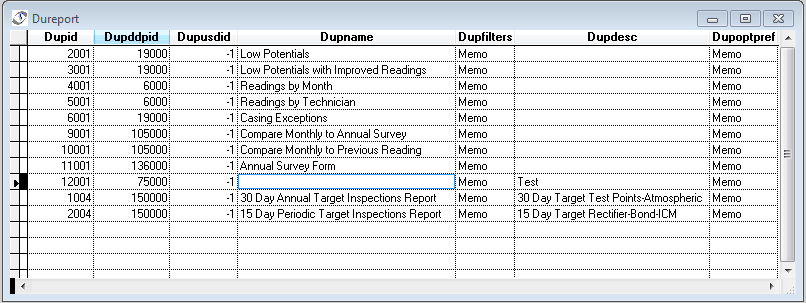
Report Names and Descriptions
-
For each row with a missing Dupname value, mark the left-most column to delete or rename the report.
-
Close the Dureport command window.
The errors should be resolved and PCS users can now log into PCS successfully.
Collaborative Method
With the collaborative method, the supervisor can troubleshoot the error and find the custom reports that caused the error, then the PCS user can fix the offending reports. To resolve the errors, do the following:
-
A supervisor should log into PCS and do the following:
-
Click Help and select Command Window from the menu.
-
Click OK when the warning appears that only American Innovations Technical Support should perform these tasks.
-
Enter the following text in the Command Window to find unnamed reports:
SELECT ddp.ddpname AS parentrpt, dup.dupname AS custrpt FROM ddreport ddp INNER JOIN dureport dup ON dup.dupddpid == ddp.ddpid

Commands in the Command Window for Unnamed Reports
-
The resulting table includes a Parentrpt column (for the parent report name) and a Custrpt column (for the corresponding custom report name). Take note of the Parentrpt name for any rows where the Custrpt column is empty.
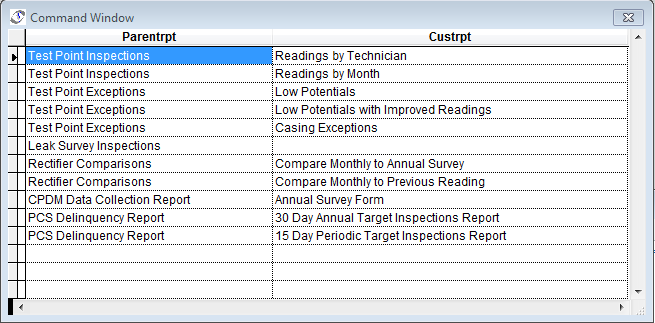
Parent and Custom Report Names
-
-
A PCS user should log into PCS, ignoring/accepting any errors that appear, and open the customize option for the parent report that the supervisor identified. Enter a name for the custom report, then save and close PCS.
The errors should be resolved and PCS users can now log into PCS successfully.