Edit a Sort Theme Addition
A sort theme addition can be edited by adding or removing fields. The sort theme can also be deleted or reverted to original settings.
Complete the following steps to edit a sort theme addition:
-
Click Data Entry > Define Routes to open the Define Routes window. Select a route from the Routes drop-down list.

Define Routes
-
Click the Customize tab and then the Sorts tab to open the Sorts window.
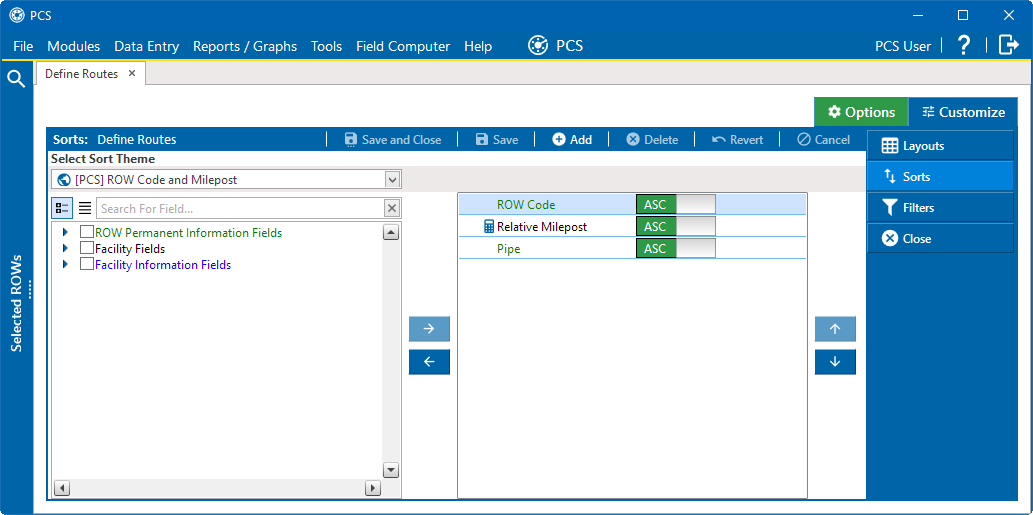
Sorts
-
Select a sort theme that you created from the Select Sort Theme drop-down list.
-
Add and remove fields in the sort theme as required. If needed, refer to Edit an Installed Sort Theme.
-
Click
 Save to save changes.
 -
To revert a sort theme addition and restore settings prior to editing, click
 Revert, then click Yes in the Confirm Revert message window.
 -
To delete a sort theme addition, select a layout theme addition from the Select Layout Theme drop-down list and click
 Delete. Click Yes in the Confirm Delete message window.
 -
Click
 Save and Close to close the Sorts window and return to the Define Routes window.