Add a Facility Information Record
Use the Information grid to add a record for a new facility on a pipeline, add an information record for an existing facility in the grid, add a history record to maintain permanent information about a facility, and activate fields for data entry in the Inspection grid.
These instructions start with the assumption that you have a facility type's Information grid selected. For information about accessing a grid of data, refer to View Data in a Grid or Form.
Complete the following steps to either add add a record for a new facility or add an information record for an existing facility on a pipeline in the Information grid. These steps can be used to add a new facility type or record for any of the facility types.
-
Select a module from the Modules main menu.
-
Click Data Entry and then select Edit <Module> Data.
-
Click
 Apply or press Enter if the Options window is displayed instead of the grid.
 -
Click the Information tab and select a facility type from the selections below the Information, Inspection, and Maintenance tabs.
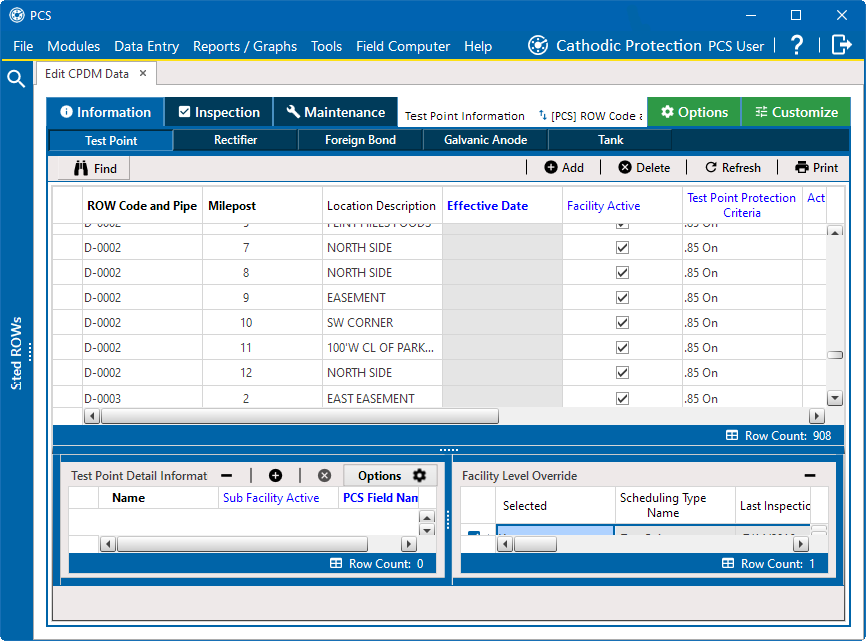
Information Grid
-
Click
 Add to open the Add Record window.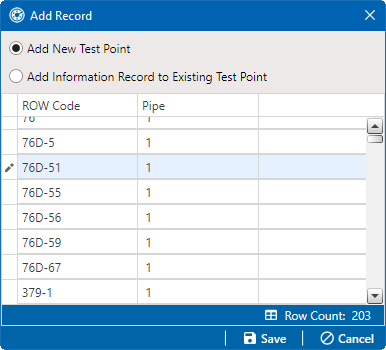
Add Record - Add New Facility or Information Record
-
To add a new facility of the selected facility type, select Add New <facility type>.
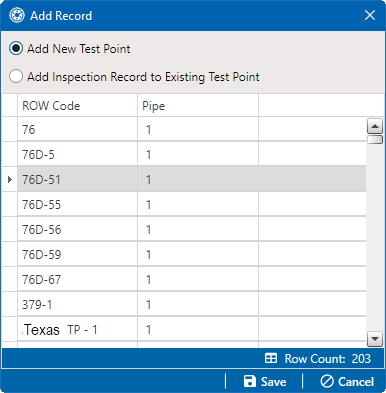
Add Record - Add New Facility Record
-
Select the pipeline in the window that you want to add a new facility and information record.
Add Record - Selected Pipeline for Information Record
-
Click
 Save to display the Add Record window with required field(s) for data entry. Required fields are identified with the
  icon, such as Milepost.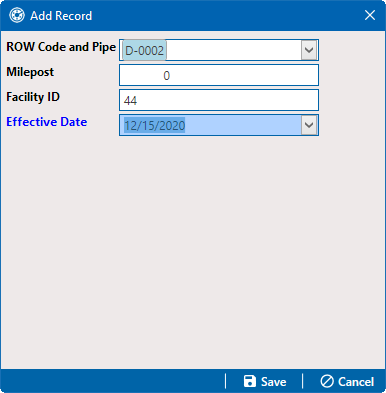
Add Record - New Facility Information Data Entry Fields
-
Complete data entry fields as needed.
-
Click
Save to close the window and add the new facility record in the Information grid. -
Activate desired fields for data entry in the Inspection grid by clicking in the check box for an "activate" field in the Information grid.
For example, click the Activate Casing P/S check box for the newly created milepost.

Activate Data Entry Field in Information Grid
-
-
To add a new information record for the existing facility type in the grid, select Add Information Record to Existing <facility type>.
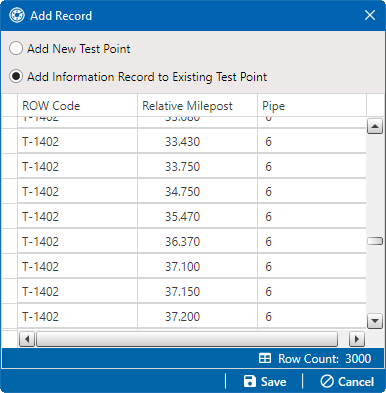
Add Record - Add Information Record for Existing Facility Type
-
Click
Save to display the Add Record window with required field(s) for data entry. 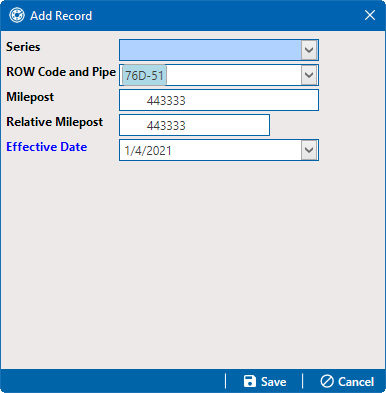
Add Record - New Information Record for Facility Type Data Entry Fields
-
Complete data entry fields as needed. For the date in the Effective Date field, use the format MM/DD/YYYY to indicate the month, day, and year. Or click the down arrow in the field and select a date using a calendar.
Effective Date is the date a history record becomes effective. New history records are created with an Effective Date when important permanent information changes. Refer to Create History Records Using an Effective Date for more information.
-
Click
Save to close the Add Record window and add an information record to the grid for the existing facility.
-
-
Enter other facility data as needed in the grid.
-
Click
 Refresh to update the grid.