Missing or No Solutions Available in CartoPac Slide
Issue
When attempting to download a project from CartoPac Slide, either a No Solutions Available message displays or not all the solutions are available.
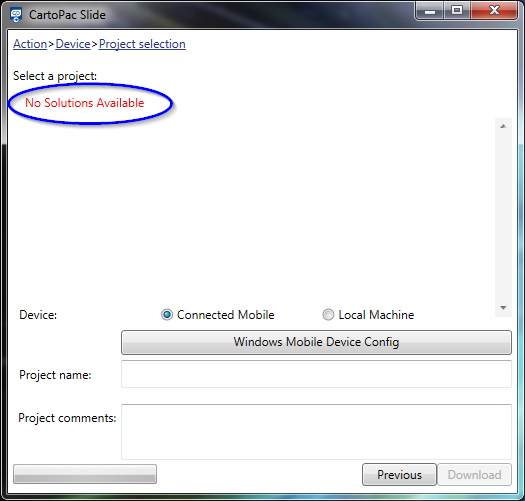
No Solutions Available Message
Occasionally the same issue can occur with missing Solution Files in the Slide window.
Causes
The No Solutions Available message displays for either one of three high level reasons including either missing Studio files, broken connections on Published Studio Solutions, or invalid permissions.
-
A valid CartoPac Server License in the CartoPac Server Setup utility must be saved.
-
For any solution to first appear in the SLIDE window, the solution must exist in the Solutions Cache directory on the server. An empty solutions directory on the CartoPac Server will produce this message when attempting to download a solution.
-
The end user of the Web Application may not have permission to upload or download the CartoPac Solution file.
-
A solution may exist in the Solutions Directory with either a broken data source connection, or unmet licensing dependencies.
-
The Process Identity of either the CartoPacServer service or the CartoPac Application Pool may not have access to the CartoPac Cache Root Directory (for example: C:\CartoPac_FieldServer\).
The default location of the Solutions Cache Directory on the CartoPac Server is C:\CartoPac_FieldServer\Solutions\.
Solutions
Cause 1 — if there a no solutions in the Solutions Cache, navigate to the CartoPac Application Server and open the CartoPac Server Setup utility from the Start > All Programs menu. Ensure that the License Configuration menu has a green status indicator light. If the status indicator light is red, the license is invalid, and AI Support may need to be contacted for assistance in procuring a valid license.
Cause 2 — if there are no solutions in the Solutions Cache, publish a solution to Web Services from CartoPac Studio by opening the Tools > Publish to Web Services menu. This tool performs validation on a Studio Solution and then places it up in the Solutions Cache Directory on the Server (for example: C:\CartoPac_FieldServer\Solutions).
Cause 3 — ensure that the User, or Role containing the user, has adequate permissions to download from the CartoPac Studio Solution File in the Web Application under the Administration > User Management page.
Cause 4 — if the solution exists in the Solutions Directory and the end users have permissions to download from the solution as determined by the User Management page in the Web Application, open the solution and test all the connections within the Solution Explorer pane. Download from the Solution directly on the Server to the CartoPac Tablet application on the server as a test to determine whether the solution is configured correctly. Finally, check any licensing dependencies and restart the CartoPacServer service before attempting to launch CartoPac Slide from the Web Application again.
If the Connections are ArcGIS SDE Direct Connections to a database, an ArcGIS desktop license is required to be checked out by the CartoPac Server Service in order for a solution to be validated and appear in the SLIDE drop-down menu. When the CartoPac Studio program is opened on the Server, it checks out a separate ArcGIS Desktop License if data source connections are utilizing ArcGIS SDE Direct Connect Syntax. Solutions may not appear in the drop-down simply because the CartoPacServer service does not have a perpetually checked out ArcGIS Desktop License.
-
Log into the CartoPac Server as a member of the local CartoPacServerAdmins group and launch the CartoPac Server Setup utility.
-
Click the Configuration tab and select the Server Configuration page.
-
Ensure that an ArcGIS License is set to be checked out by the CartoPacServer service.
-
Restart the service to prompt a fresh checkout of an ArcGIS Desktop license.
Cause 5 — ensure that both the CartoPacServer service user and the CartoPac application pool are running as process identities that have access to the CartoPac Server Cache Root Directory: C:\CartoPac_FieldServer\.
Occasionally, there are some servers configured that require the CartoPac Application Pool or the CartoPacServer service to run as users on specific domains or with elevated permissions. The default configuration sets the CartoPacServer service to run as a local system account, and the CartoPac application pool to run as the identity ApplicationPoolIdentity. In the event that either of these users require modification, CartoPac may recommend using a low level user with slightly more elevated permissions to run on the Application Pool's Identity such as the Network Service user.