Create an Extract Report
Create a new Extract report:
-
On the Extracts page, click
 Add New Report.
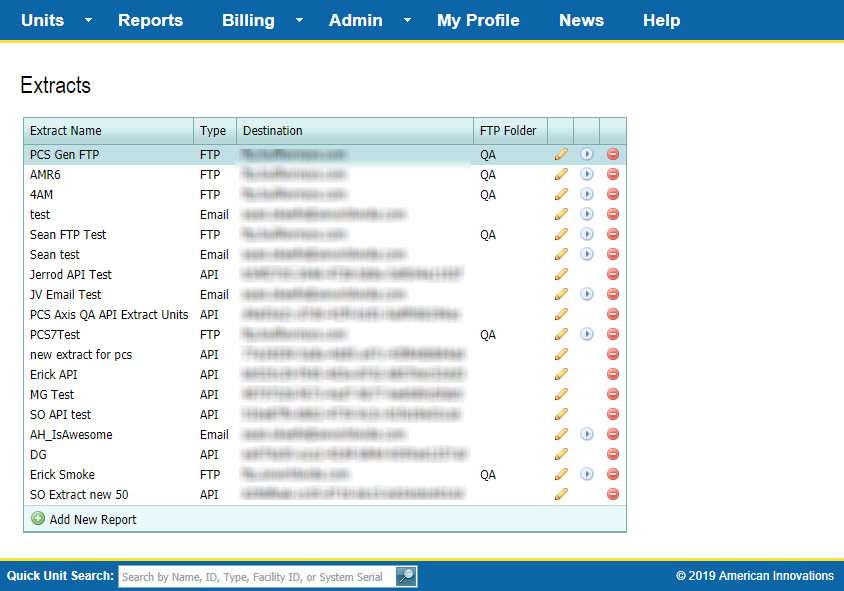
Extract Reports
-
Enter a name for the report in the Extract Name field.

Extract Configuration Window
-
Select a unit group from the Unit Group To Use drop-down field.
-
Depending on which PCS software version you plan to use with the report, select one of the following Version options:
-
Select PCS 6 for any PCS version 6 software.
-
Select PCS Generic for any PCS version 7 software.
-
Select PCS Axis for automated import of data into any PCS Axis version.
-
Select CSV for a file that can be imported with the PCS Axis bridge.
-
-
Select either Email or FTP for the extract destination to have the report sent automatically to an Email address or an FTP site.
-
Complete one of the following steps:
-
If you selected Email, type an email address in the Email text box.
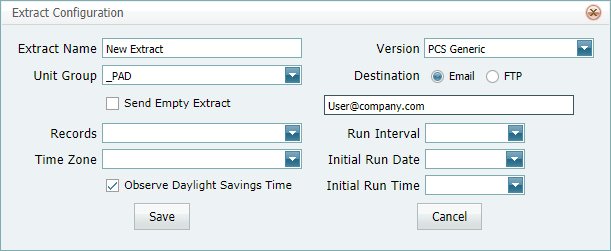
Extract Configuration with Email
-
If you selected FTP, provide the following information in the appropriate text box:
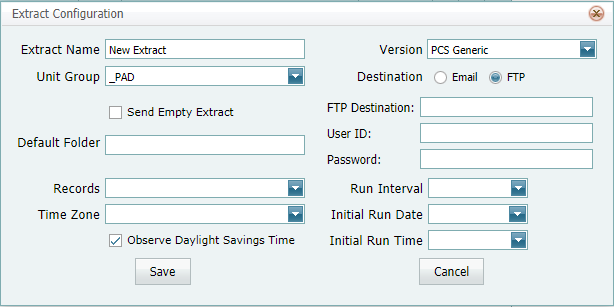
Extract Configuration with FTP
-
FTP Destination — type the FTP site address using the format ftp.siteaddress.com
-
User ID — type the user ID required to log on to the FTP site.
-
Password — type the password required to log on to the FTP site.
-
Default Folder Name — type the name of the folder where the report should be delivered.
-
-
-
Select or deselect the option to Send Empty Extract.
-
Selection one of the following options from the Records drop-down field:
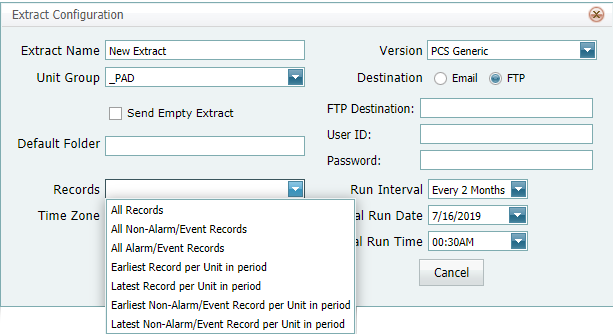
Records Options
-
All Records — includes all normal calls and alarm transmissions (alerts) for the specified date range and unit group.
-
All Non-Alarm Records — includes normal calls for the specified date range and unit group; alarm transmissions are not included.
-
All Alarm Records — includes alarm transmissions for the specified date range and unit group; normal calls are not included.
-
Earliest Record per Unit in period — includes the first transmission (normal call or alarm transmission) for each unit according to the specified date range and unit group.
-
Latest Record per Unit in period — includes the last transmission (normal call or alarm transmission) for each unit according to the specified date range and unit group.
-
Earliest Non-Alarm Record per Unit in period — includes the first normal call for each unit according to the specified date range and unit group. Alarm transmissions are not included in the report.
-
Latest Non-Alarm Record per Unit in period — includes the last normal call for each unit according to the specified date range and unit group. Alarm transmissions are not included in the report.
-
-
Select a time zone from the Time Zone drop-down field.

Time Zone Options
-
Select how often the report will be run from the Run Interval drop-down field.
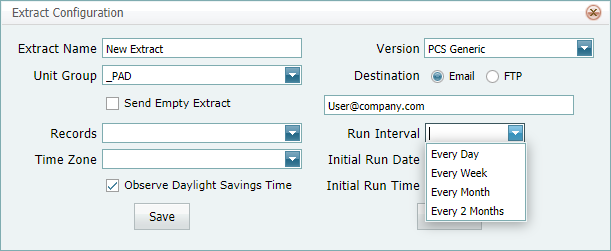
Run Interval Options
-
Select a date to begin running the report from the Initial Run Date drop-down field.
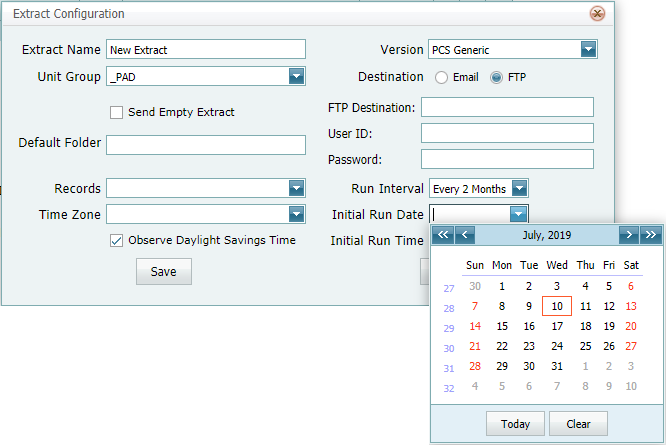
Initial Run Date Options
-
Select a time to begin running the report from the Initial Run Time drop-down field.
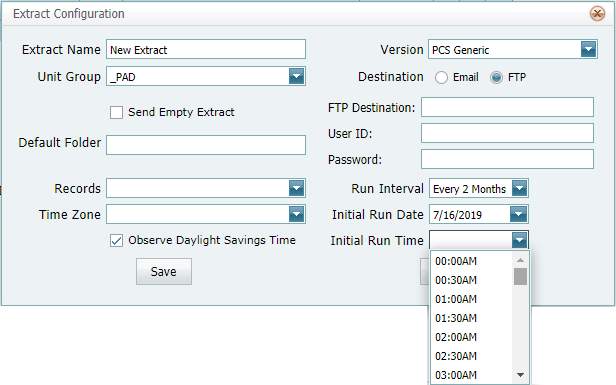
Initial Run Time Options
-
Click Save to add the new report or Cancel to cancel changes and close the Extract Configuration window.