How to Use Bluetooth Utility to Connect Allegro to Microsensys RFID Pen
Complete the following steps to connect a Microsensys RFID pen to your Allegro using the Bluetooth utility included on the Allegro:
-
Ensure that the Microsensys pen has been removed from the Bluetooth COM utility.
-
Reset the Allegro.
-
Tap Start > Setting > Connections > Bluetooth utility.
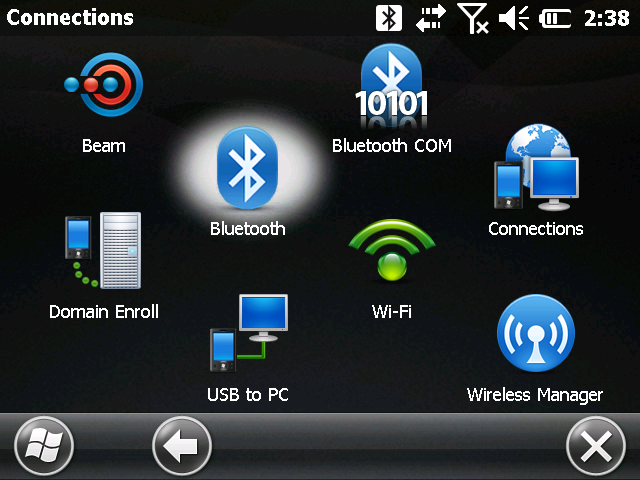
Bluetooth Utility
-
Turn on the Microsensys RFID pen. The blue light will begin flashing.
-
Tap Add new device.
-
Select the ID PENsolid, and tap Next.
-
Enter 1111 for the Passcode.
-
Tap Done.
-
Tap COM Ports from the top menu, and then tap New Outgoing Port.
-
Select the ID PENsolid, and then tap Next.
-
Select COM9, and then tap Finish.
-
Close the Bluetooth utility.
-
Open the Periodic Survey application.
-
Tap View > Options > RFID to verify the Microsensys pen is set to COM9.
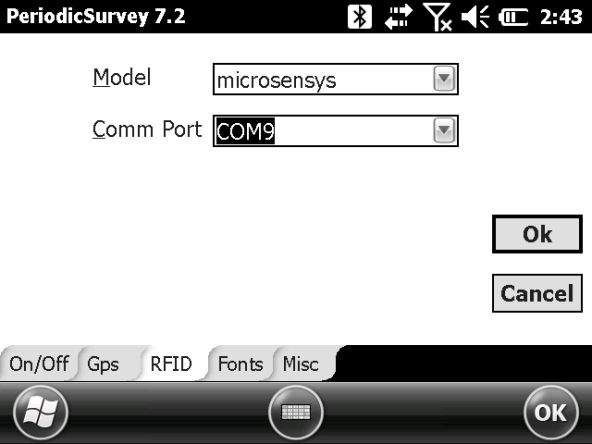
Periodic Survey App - Microsensys RFID Pen Connected with COM9
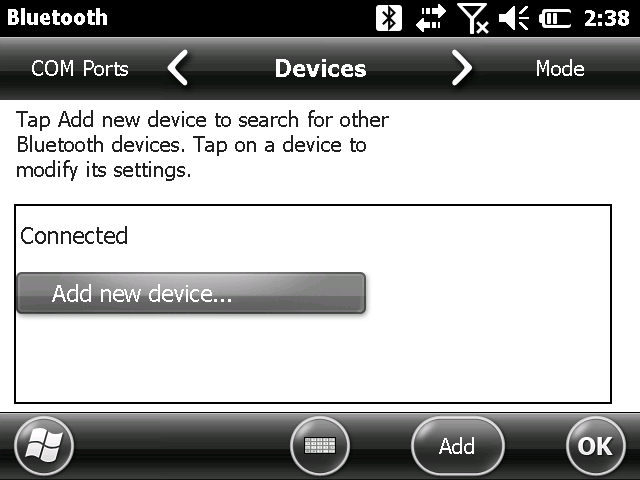
Add New Device
The Allegro will search for any Bluetooth devices.
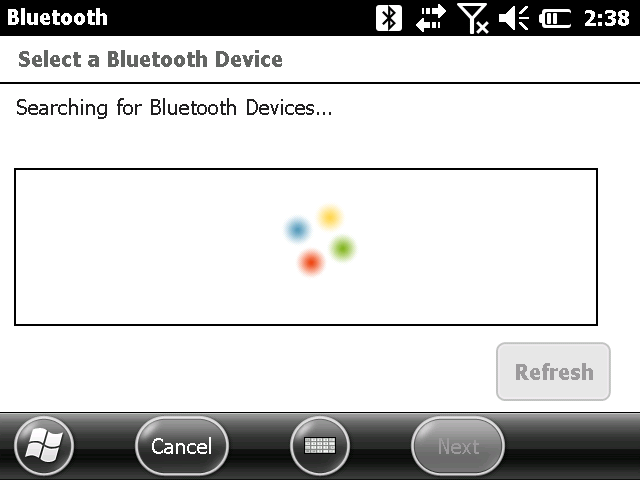
Searching for Bluetooth Devices
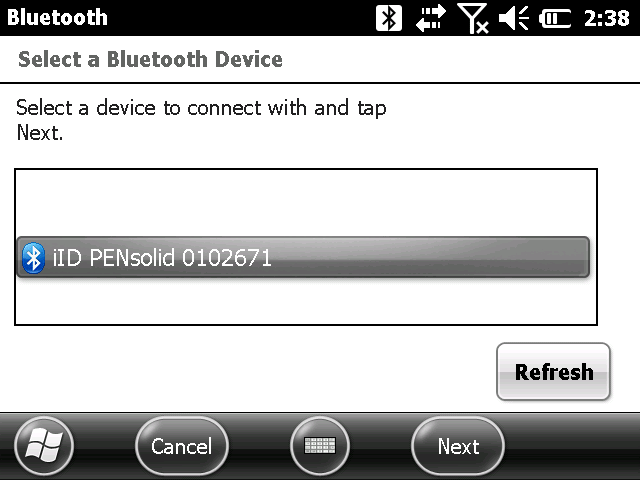
ID PENsolid Name
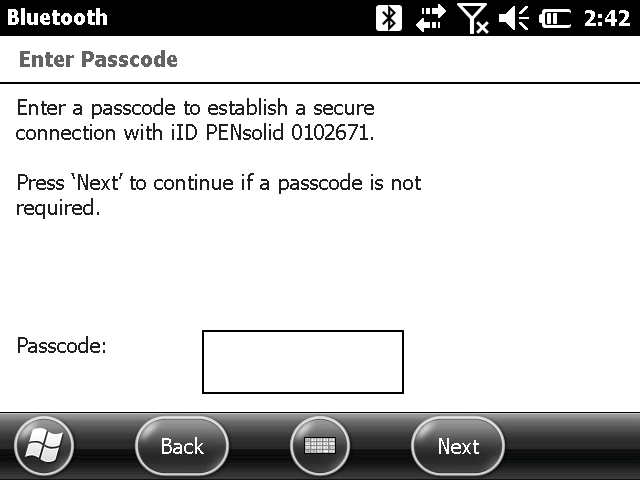
Passcode Entry
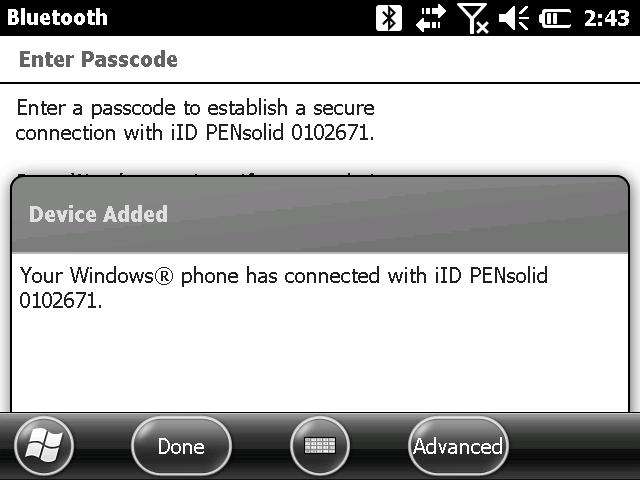
Device Added Screen
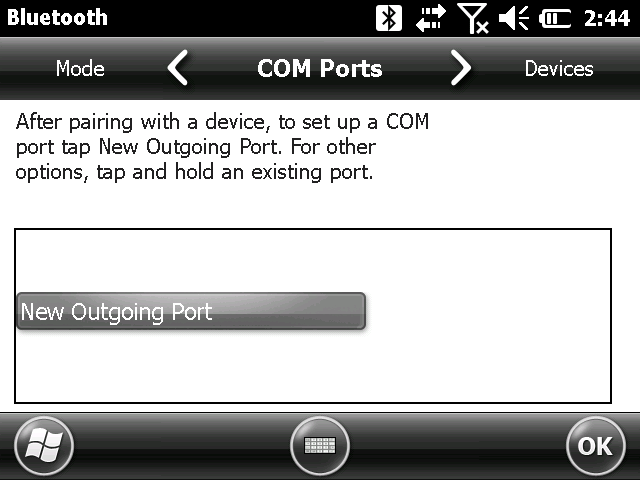
New Outgoing Port
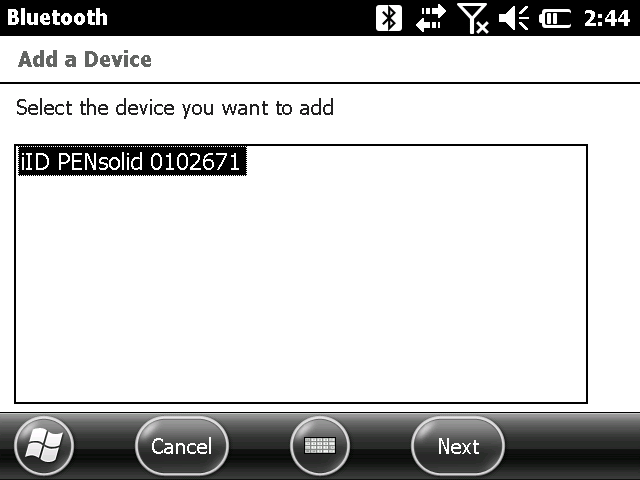
ID PENsolid Name
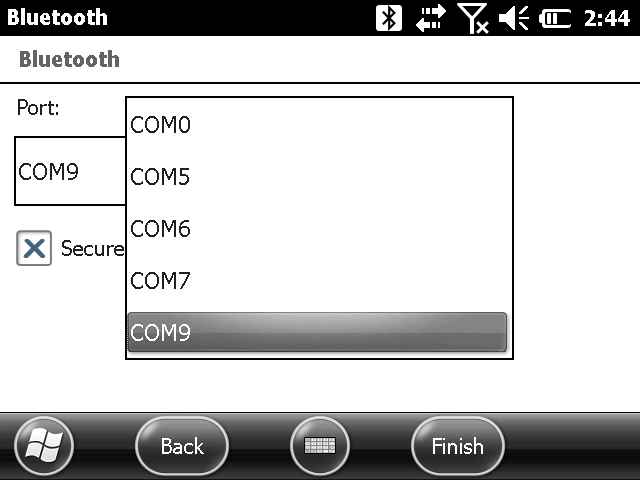
COM9 Port
The pen will have a solid blue light indicating it is ready to read tags.
Was this topic useful? Please email your feedback to us at content@aiworldwide.com.