Select one or more pipeline segments in the Select ROWs window. Click  Save to close the window (Select ROWs).
Click Data Entry > Edit ROW Detail to open the Edit ROW Detail window (Edit ROW Detail).
Select the grid you want to work with by clicking the Information tab  or the Maintenance tab
  .
.
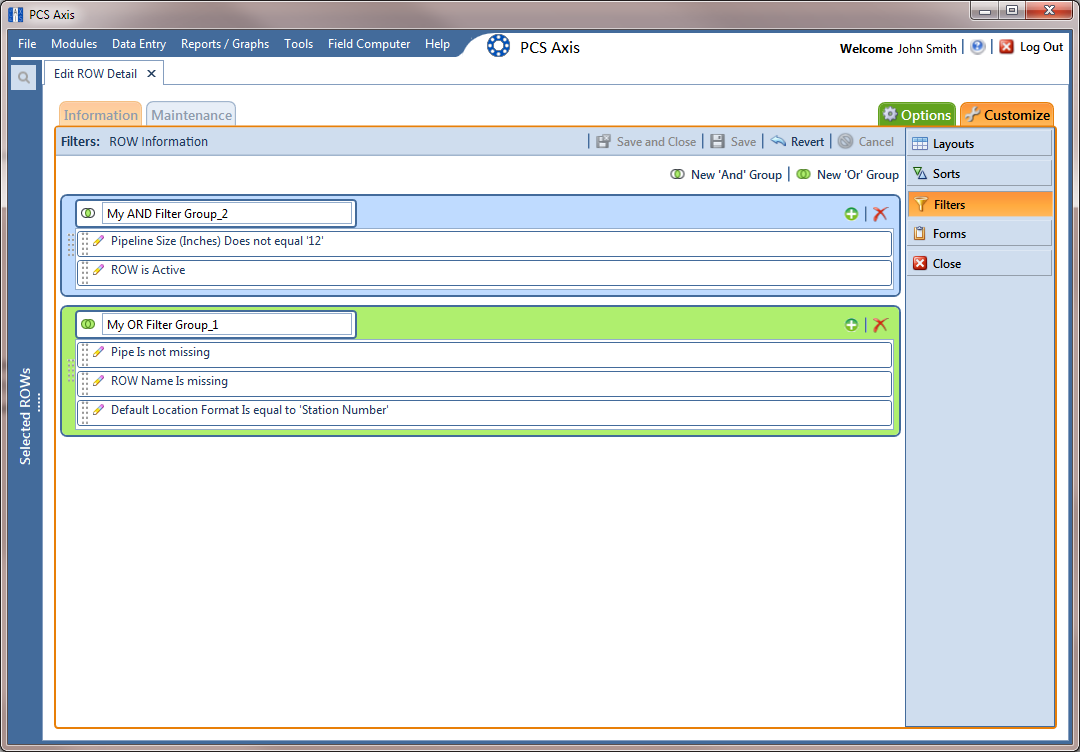
Click the Customize tab  then the Filters button
  to open the Filters page (Filters).
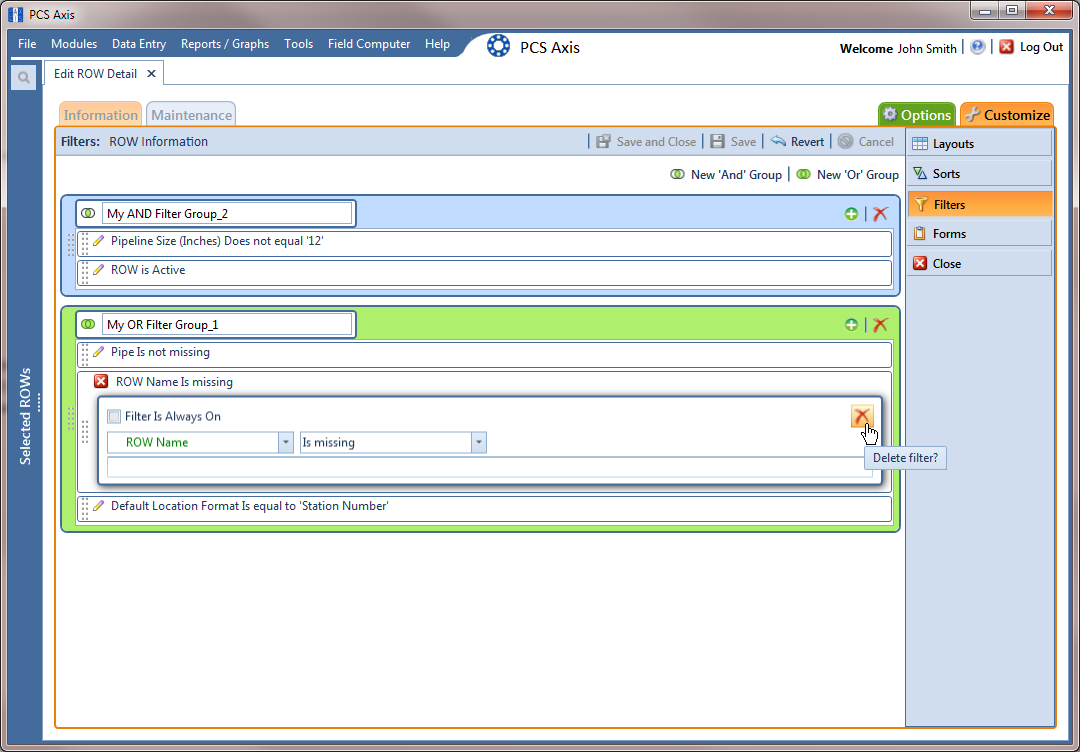
Click the edit icon  to display a filter's property settings.
To delete a filter in a filter group, click the filter's  delete button (Filters). Then click
  Yes when the Delete message displays.
To rename a filter, type a description in the filter's name field.
To change filter criteria, use filter selection fields to select a PCS field, operator, and one or more filter conditions.
To enable a filter for all sessions of the data entry grid, click the check box Filter is Always On to place a check mark inside the check box. When this check box is not selected, toggle the filter on and off in the options page using the filter's check box.
Click the  close button to close the filter's property settings group box.
To move a filter to a different position in a filter group, or to move a filter group to a different position, follow these steps:
-
Point the mouse at the handle
 of a filter or filter group to display a vertical resize cursor
  .
. -
Drag and drop the filter or filter group to a new location.
PCS processes filters in descending order beginning with the filter at the top of the filter group.
Click  Save and Close to save changes and return to the data entry grid.