Link Multiple Subfacilities to a Parent Test Point Facility
Multiple subfacilities can be linked to a parent test point facility.
You can select one of the subfacility potential measurements (survey readings) for compliance reporting. Once new subfacility records have been added and linked to a parent test point facility in the Test Point Detail Information mini-grid, they are then available for use in the Test Point Detail Inspection mini-grid.
These instructions start with the assumption that a PCS module is already selected and the correct pipeline segments have been selected. For information detailing how to select pipeline segments, refer to Select ROWs.
Complete the following steps to link multiple subfacilities to a parent test point facility:
-
Select a module from the Modules main menu.
-
Click Data Entry and then select Edit <Module> Data.
-
Click
 Apply or press Enter if the Options window is displayed instead of the grid.
 -
Click the Information tab and then select Test Point.
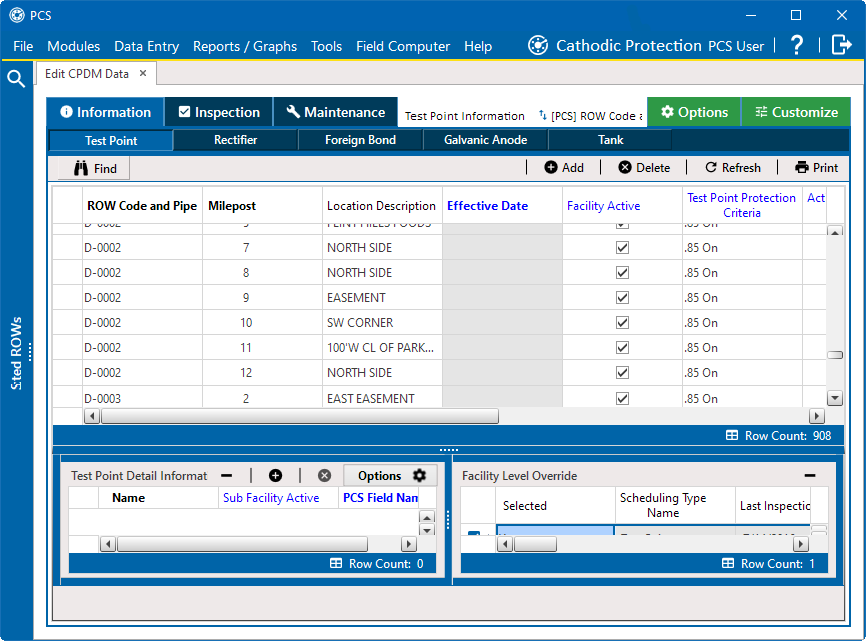
Information Grid
-
Select a test point facility in the Information grid.
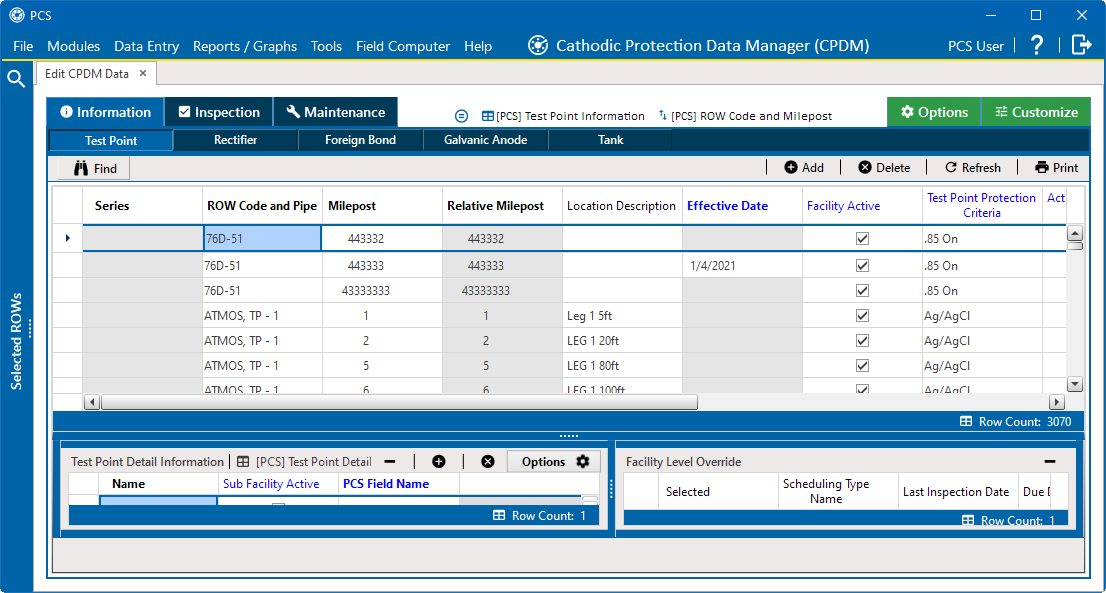
Selected Test Point in Information Grid
Repeat these steps for each new subfacility record you want to add and link to the currently selected test point facility record.
-
Click
 in the Test Point Detail Information mini-grid.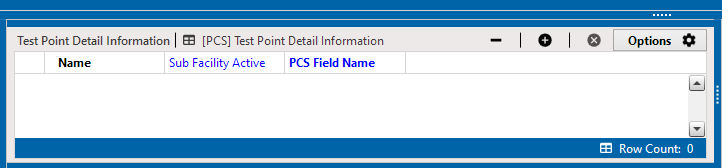
Information Test Point - Test Point Detail Information Mini Grid
-
In the Add Record window type a unique name for the new subfacility in the Name field. This field supports up to 100 alphanumeric characters. Fields requiring information include a
 icon. You must enter information in the required fields before the record will be added.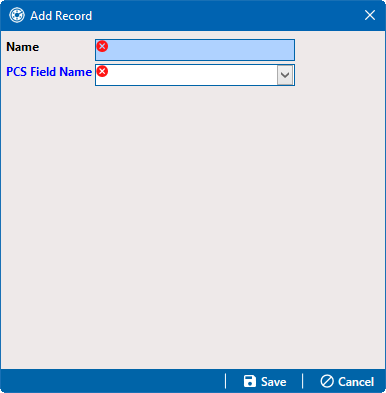
Add Record Dialog Box
To prevent adding duplicate subfacility records in the system, it is important to enter a unique name in the Name field for each subfacility record.
-
Select the name of a PCS field from the PCS Field Name drop-down. Select a PCS field name that matches the type of potential measurement associated with the new subfacility.
-
Click
 Save to add the record and close the window. The new sub-facility is added to the mini-grid.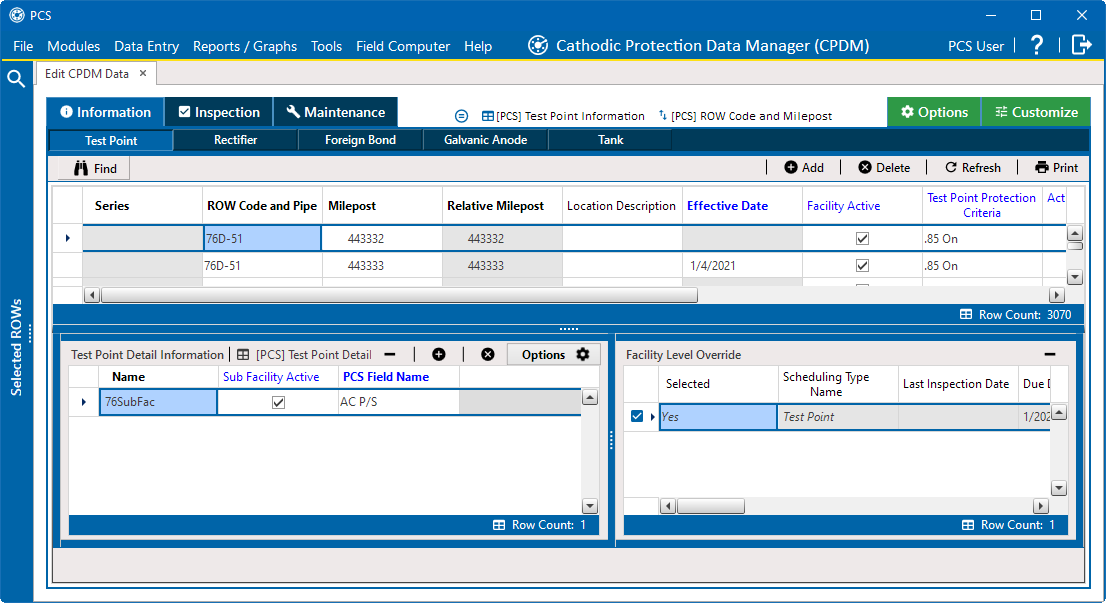
New Subfacility Added to Mini-grid
-
Open the Test Point Inspections grid. If the Test Point Detail Inspections mini-grid is not visible, double-click Test Point Detail Inspection at the bottom of the window to open the mini-grid.
-
In the Test Point Inspectionsgrid, complete the following steps to add potential measurements (survey readings) for subfacilities in the Test Point Detail Inspection mini-grid, and then select one of these for compliance reporting:
-
Select a test point facility in the Inspection grid that includes subfacilities you want to add potential measurements. For example, the test point that you created the subfacility for in the previous step.
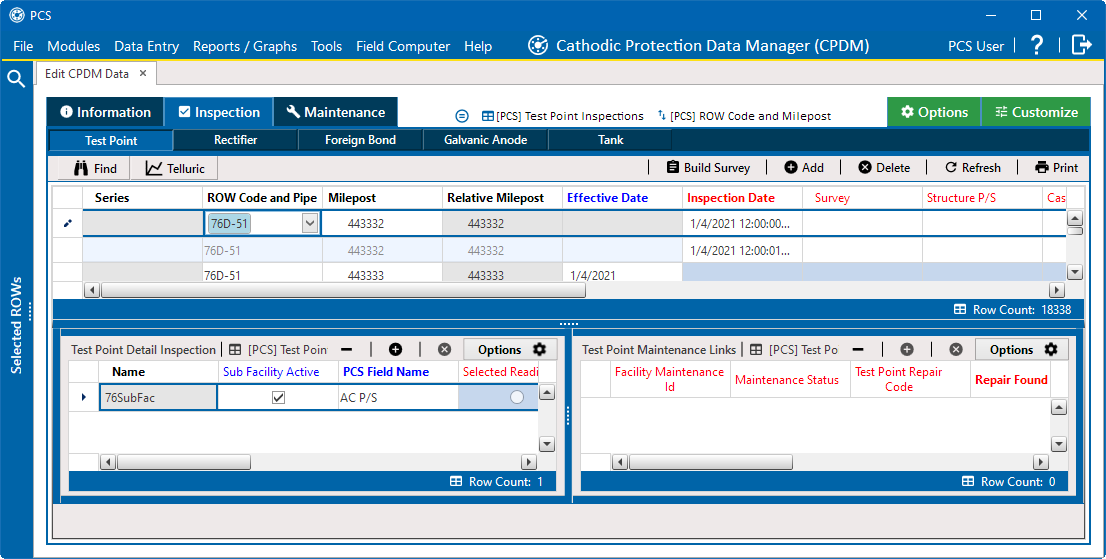
Test Point Detail Inspection Mini-Grid
-
If potential measurements have not previously been added in the mini-grid, click
to enable the mini-grid for data entry. -
Select a subfacility in the mini-grid. Then add potential measurements and other related survey data in appropriate mini-grid fields. Repeat this step as needed for other linked subfacilities in the mini-grid.
-
To select a potential measurement to use for compliance reporting, click the Compliance option button in the mini-grid associated with the subfacility record.
-
Based on your PCS license, the Compliance field may be named Selected Reading instead.
-
Click
 Refresh to copy the selected potential measurement to the linked test point facility in the Inspection grid.
 -
When a value for a dependent field has been updated in a data entry grid, a
 notification icon displays in the derived field indicating the value has changed and the data entry grid should be refreshed. Clicking Refresh updates all derived values and removes the notification icon. Refer to Work with Derived Fields for more information.
-