Edit Objects in a Margin or Section
When an object is added to the form, it inherits the default styles set in the margin or section that the object was added. If no default was set for the margin or section, the report page's defaults are used. You can override these defaults by modifying the objects' properties in the Properties pane.
Appearance properties. Appearance properties define the color, borders, and padding of the space allotted for the object.
When the appearance properties for an object added to the form are modified in the Properties pane, any defaults set in the form report, the margin, or the detail section are ignored and the object's settings are used. Depending on the object selected, the appearance properties available in the Properties pane will vary.
If a property can be reset, the check box will be filled in black. To reset a property, click the check box to the far right of the property name line.
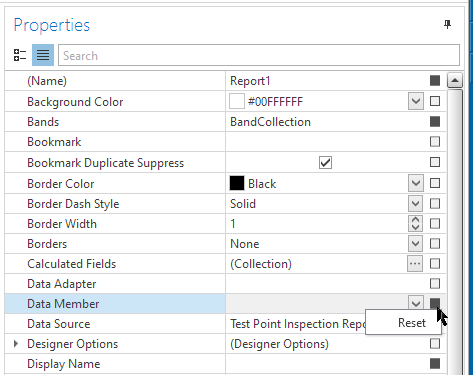
Resetting a Property
When you click on a Property, a definition of the property displays at the bottom of the screen. For example, Background Color has been selected in the following image. The definition for Background Color is shown in the pane below Properties. Use these definitions to understand each of the properties listed in this pane.
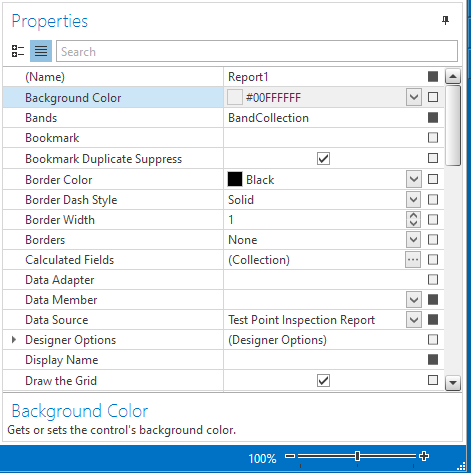
Property Descriptions
The following appearance settings may be available for the object:
-
Background Color — to change the background color for an object added to the form, select the Background Color drop-down. A grid of available and standard colors appears. Select a color from the grid or click
 More Colors to switch to the custom color selector and create a custom color
by doing any of the following:
More Colors to switch to the custom color selector and create a custom color
by doing any of the following:-
Select a color with the color slider and color field.
-
Enter a hexadecimal value in the field provided.
-
Select a color model in the drop-down provided and enter the following in the fields provided:
-
For RGB color model: Red (R), Green (G), Blue (B), and Alpha (A) values
-
For CYMK color model: Cyan (C), Magenta (M), Yellow (Y), and Black (K) values
-
For HSL color model: Hue (H), Lightness (L), Saturation (S), and Alpha (A) values
-
For HSB color model: Hue (H), Saturation (S), Brightness (B), and Alpha (A) values
-
Click
 to activate the color picker and move your mouse over a spot on your computer that has the color you wish to use. Click your mouse to select the color.
-
-
Border Color — to change the color of the border for an object added to the form, select the Border Color drop-down. A grid of available and standard colors appears. Select a color from the grid or click
More Colors to switch to the custom color selector and create a custom color (see Background Color, above). -
Border Dash Style — To change the default type of line used for a border of a Control object added to the form, select one of the following options from the Border Dash Style drop-down:
-
Solid : for a single solid line
-
Dash : for a consistent dashed line
-
Dot : for a consistent dotted line
-
Dash-Dot: for a line that alternates between dashes and dots
-
Dash-Dot-Dot: for a line that alternates between dashes and two dots
-
Double : for two solid lines
-
-
Border Width — to change the default thickness for a border of a Control object added to the form, enter a value in pixels in the Border Width text field.
-
Borders — to determine what sides of a object will have borders by default, click the Borders drop-down and complete the following steps:
-
Click All to have borders on all sides of the objects added to the form.
-
Click None to not have any borders on the objects added to the form.
-
Click
 at the top, bottom, left, or right edge of the border drop-down to toggle whether the top, bottom, left, or right border is applied to objects added to the form
-
-
Fill Color — to change the fill color for shapes added to the form, select the Foreground Color drop-down. A grid of available and standard colors appears. Select a color from the grid or click
More Colors to switch to the custom color selector and create a custom color (see Background Color, above). -
Font — click the ellipsis (...) next to the Font field to open the Font window. Select a font family, style, size, effect, and script for text-based objects added to the form and click OK.
-
Foreground Color — to change the text color for text-based objects added to the form or the line color for lines and shapes added to the form, select the Foreground Color drop-down. A grid of available and standard colors appears. Select a color from the grid or click
More Colors to switch to the custom color selector and create a custom color (see Background Color, above). -
Line Direction — to change the direction the line is drawn for a line object, select the preferred direction from the Line Direction drop-down.
-
Line Style — to change the type of line used for the outline of a shape or line object added to the form, select one of the following options from the Line Style drop-down:
-
Solid : for a single solid line
-
Dash : for a consistent dashed line
-
Dot : for a consistent dotted line
-
Dash-Dot: for a line that alternates between dashes and dots
-
Dash-Dot-Dot: for a line that alternates between dashes and two dots
-
Double : for two solid lines
-
-
Line Width — to change the thickness of the line for a shape or line object added to the form, enter a value in pixels in the Line Width text field.
-
Padding — to control the amount of space between a Control object's contents and the border click the arrow next to Padding to expand the padding options. Enter values in pixels in the fields available.
-
Text Alignment — to set the alignment of the object's text, select one of the following values from the Text Alignment drop-down: Top Left, Top Center, Top Right, Middle Left, Middle Center, Middle Right, Bottom Left, Bottom Center, Bottom Right, Top Justify, Middle Justify, and Bottom Justify.
-
Text Trimming — to define what should happen when the text for the field extends beyond the space allotted for the control, select one of the following values from the Text Trimming drop-down:
-
None: does not trim the text content in any special way.
-
Character: trims the text after the last character to fully fit within the bounds of the field.
-
Word: trims the text after the last word to fully fit within the bounds of the field.
-
Ellipsis Character: trims the text after the last character to fully fit within the bounds of the field and adds an ellipsis (...) in place of remaining text.
-
Ellipsis Word: trims the text after the last word to fully fit within the bounds of the field and adds an ellipsis (...) in place of remaining text.
-
Ellipsis Path: trims enough text from the middle of the text to fully fit within the bounds of the field and adds an ellipsis (...) in place of removed text. This selection is useful for displaying file paths, since the filename at the end of the path contains the most relevant information.
-
Behavior properties. Behavior properties determine how the object fills the space allotted for the object.
-
Angle — enter a value in degrees in the Angle text field to rotate the object.
-
Format — to show the page information in a customized format, click the ellipsis (...) next to the Format field to open the Format String Editor window. Select a category from the list on the left and a format from the pane on the right and click OK.
-
Image Alignment — to set the alignment of the image in the space available for the control, select one of the following values from the Image Alignment drop-down: Top Left, Top Center, Top Right, Middle Left, Middle Center, Middle Right, Bottom Left, Bottom Center, and Bottom Right
-
Keep Together — to keep the entire object together on the same page, click to select the Keep Together check box. If a page break would naturally occur in the middle of the object, it will move to the next page instead of breaking across pages.
-
Multiline — to allow multiple lines of text to be entered in the label, click to select the Multiline check box. If the check box is cleared, text that is entered on multiple lines in the label will combine into one long string of text.
-
Page Information — select an option from the Page Information drop-down to define what information is shown in the control.
-
Shape — select a shape from the drop-down provided to change the shape that's drawn on the form report.
-
Sizing — select an option in the Sizing drop-down to determine if the image should fill the space available for the control and how it should be filled.
-
Start Page Number — if the information showing in the control is a page number, enter a value in the Start Page Number to indicate what page number should be displayed for this control on the first page of the report. This is useful mainly if you combine the PCS report with other materials to form a single report and wish for the page numbers to be accurate for the final report.
-
Stretch — to stretch the shape to fill the space available for the control, click to select the Stretch check box. To maintain the exact angle defined in the Angle property, click to clear the Stretch check box.
-
Word Wrap — to define what should happen when the text for the field extends past the first line, click to select or to clear the Word Wrap check box. To have the text wrap to the second line, the check box should be selected. To trim the text, the check box should be cleared.
Data properties. Data properties define what content is displayed in the control.
-
Image — to preview the image identified for the image control, click once in the Image field. The following actions are available with the image preview box showing:
-
Clear the Image — to clear the image from the image control, click Clear.
-
Define an Image — to define or redefine the image that shows in the image control, click the image preview box and navigate to the image in the Open window that appears. Select the image and click Open.
-
-
Image URL — to define the image that shows in the image control by file path or URL, enter the path to an image in the Image URL field.
-
Text — enter text in the field provided to define the text shown in the label.
Design properties. The design property identifies a unique name for the object selected on the form. This field does not need to be edited.
Display properties. Display properties define how and if the caption, images, and barcode should show in the report.
-
Caption Text — enter text in the Caption Text field to change the text that appears alongside the value of the data field.
-
Description Height — enter a value in hundredths of an inch to define the space available for an image's description.
-
Display Mode — select an option from the Display Mode drop-down to define how the field and caption should be shown on the form report. If either BarCodeAndValue or BarCodeValueAndCaption is selected, make sure the control on the form is tall enough to show a bar code below the value.
-
Image Columns — to show several images in an images field on one row, enter the number of images that should be shown on a single row in the field provided.
-
Image Count — if Count is selected in Image Display Mode, enter the number of images from the selected images field that should be included in the report.
-
Image Display Mode — select from the following options from the Image Display Mode drop-down to define which images from the selected images field should be included in the report:
-
All — includes all images from the selected images field
-
Count — includes a specified number of images from the selected images field, as defined in the Images Count property. The order the images are defined in the images field determines which images will be included in the report.
-
PrimaryOnly — only displays the image defined as the images field's primary image. If no primary image is defined for the images field, no image will be displayed.
-
PrimaryOrFirst — displays the image defined as the images field's primary image. If no primary image is defined for the images field, the first image in the list of images for the field is displayed.
-
-
Show Caption — click to select the Show Caption check box if you want to show the caption for images fields. Click to clear the check box to hide the caption on the report.
Layout properties. Layout properties define the control's size and location on the form report.
-
Location — to modify the control's location in relation to the margin, section, or pane the object's placed in, click to expand the Location property and enter an X or Y value in hundredths of an inch in the fields provided.
-
Size — to modify the control's size, click to expand the Size property and enter a Height and Width in hundredths of an inch in the fields provided.