Create and Manage Form Theme Styles
Theme styles are saved collections of color, border, padding, and font properties that can be applied to objects on the form or set as defaults in report sections or margins. When a style is applied to an object on the form, the object's background, border, font, and padding properties follow the properties defined in the style. To apply a style to an object, select an object on the form theme. In the Properties pane, locate a Styles property and select the style from the drop-down.
To view, create, and edit a theme style, click Styles. The Edit Styles window opens.
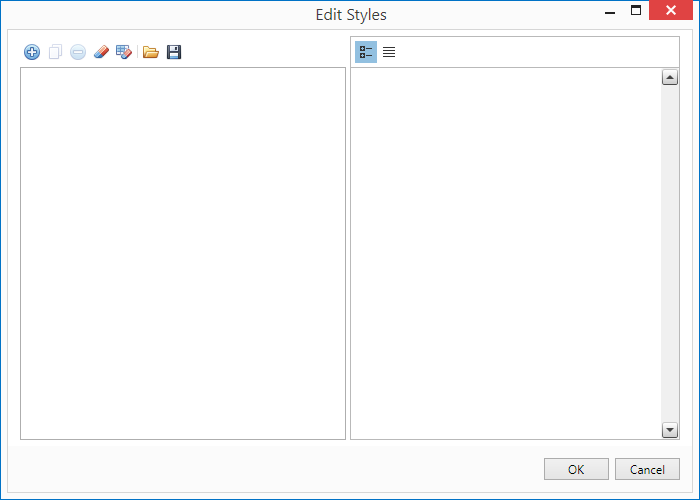
Edit Styles
Complete the following steps to create, edit, remove, save, or load a style:
-
Click . A new style is created with a default name and set of properties. Select the newly created style in the list on the left to edit the style
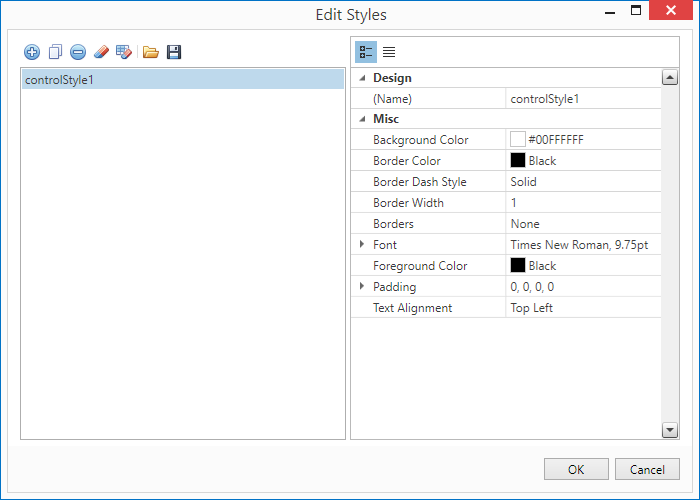
New Style
-
Edit the style using the property selections on the right side of the window.
-
Name — to rename the style, select the text in the Name field and enter a new value.
-
Background Color — to change the background color for the style, select the Background Color drop-down. A grid of available and standard colors appears. Select a color from the grid or click More Colors to switch to the custom color selector and create a custom color by doing any of the following:
-
Select a color with the color slider and color field.
-
Enter a hexadecimal value in the field provided.
-
Select a color model in the drop-down provided and enter the following in the fields provided:
-
For RGB color model: Red (R), Green (G), Blue (B), and Alpha (A) values
-
For CYMK color model: Cyan (C), Magenta (M), Yellow (Y), and Black (K) values
-
For HSL color model: Hue (H), Lightness (L), Saturation (S), and Alpha (A) values
-
For HSB color model: Hue (H), Saturation (S), Brightness (B), and Alpha (A) values
-
-
Click to activate the color picker and move your mouse over a spot on your computer that has the color you wish to use. Click your mouse to select the color.
-
-
Border Color — to change the color of the border for the style, select the Border Color drop-down. A grid of available and standard colors appears. Select a color from the grid or click More Colors to switch to the custom color selector and create a custom color by doing any of the following:
-
Select a color with the color slider and color field.
-
Enter a hexadecimal value in the field provided.
-
Select a color model in the drop-down provided and enter the following in the fields provided:
-
For RGB color model: Red (R), Green (G), Blue (B), and Alpha (A) values
-
For CYMK color model: Cyan (C), Magenta (M), Yellow (Y), and Black (K) values
-
For HSL color model: Hue (H), Lightness (L), Saturation (S), and Alpha (A) values
-
For HSB color model: Hue (H), Saturation (S), Brightness (B), and Alpha (A) values
-
-
Click
 to activate the color picker and move your mouse over a spot on your computer that has the color you wish to use. Click your mouse to select the color.
-
-
Border Dash Style — To change the type of line used for the border, select one of the following options from the Border Dash Style drop-down:
-
Solid — for a single solid line
-
Dash — for a consistent dashed line
-
Dot — for a consistent dotted line
-
Dash-Dot — for a line that alternates between dashes and dots
-
Dash-Dot-Dot — for a line that alternates between dashes and two dots
-
Double — for two solid lines
-
-
Border Width — to change the thickness of the border, enter a value in pixels in the Border Width text field.
-
Borders — to determine what sides will have borders, click the Borders drop-down and complete the following steps:
-
Click All to have borders on all sides of the object the style is applied to.
-
Click None to not have any borders on the object the style is applied to.
-
Click at the top, bottom, left, or right edge of the border drop-down to toggle whether the top, bottom, left, or right border is applied for the style.
-
-
Font — click the ellipsis (...) next to the Font field to open the Font window. Select a font family, style, size, effect, and script for the object the style is applied to and click OK.
-
Foreground Color — to change the color of the text for the style, select the Foreground Color drop-down. A grid of available and standard colors appears. Select a color from the grid or click More Colors to switch to the custom color selector and create a custom color by doing any of the following:
-
Select a color with the color slider and color field.
-
Enter a hexadecimal value in the field provided.
-
Select a color model in the drop-down provided and enter the following in the fields provided:
-
For RGB color model: Red (R), Green (G), Blue (B), and Alpha (A) values
-
For CYMK color model: Cyan (C), Magenta (M), Yellow (Y), and Black (K) values
-
For HSL color model: Hue (H), Lightness (L), Saturation (S), and Alpha (A) values
-
For HSB color model: Hue (H), Saturation (S), Brightness (B), and Alpha (A) values
-
-
Click to activate the color picker and move your mouse over a spot on your computer that has the color you wish to use. Click your mouse to select the color.
-
-
Padding — to control the amount of space between the form object's contents and the border click the arrow next to Padding to expand the padding options. Enter values in pixels in the fields available.
-
Text Alignment — to set the alignment of the object's text, select one of the following values from the Text Alignment drop-down: Top Left, Top Center, Top Right, Middle Left, Middle Center, Middle Right, Bottom Left, Bottom Center, Bottom Right, Top Justify, Middle Justify, and Bottom Justify.
-
-
To remove a single style, select the style from the list on the left and click (remove a style). The style is removed from the Edit Styles window and cleared from any object that the style was applied to.
-
To remove all styles, click (Clear Styles). The all styles are removed from the Edit Styles window and cleared from any object that styles have been applied to.
-
To remove only the styles that have not been applied to objects on the form theme, click (delete unused styles). Any unused styles are removed from the Edit Styles window.
-
Click
 Save to save all created styles. A Save As wndow opens. Navigate to a location where you wish to save the style, enter a name for the style, and click Save.
 -
Click OK to close the Edit Styles window.
-
To load saved styles, click
 (load styles from a folder), navigate and select the style, then click Open.
 -
To use a style for an object, such as text, select the style. Then click the
 next to Styles to expand it, then click the
  in the Style line, and select one of the saved styles.
 If you click the ellipses button next to (Collection), the Styles Editor window will open. You can make edits to styles this way as well as through the Styles button.
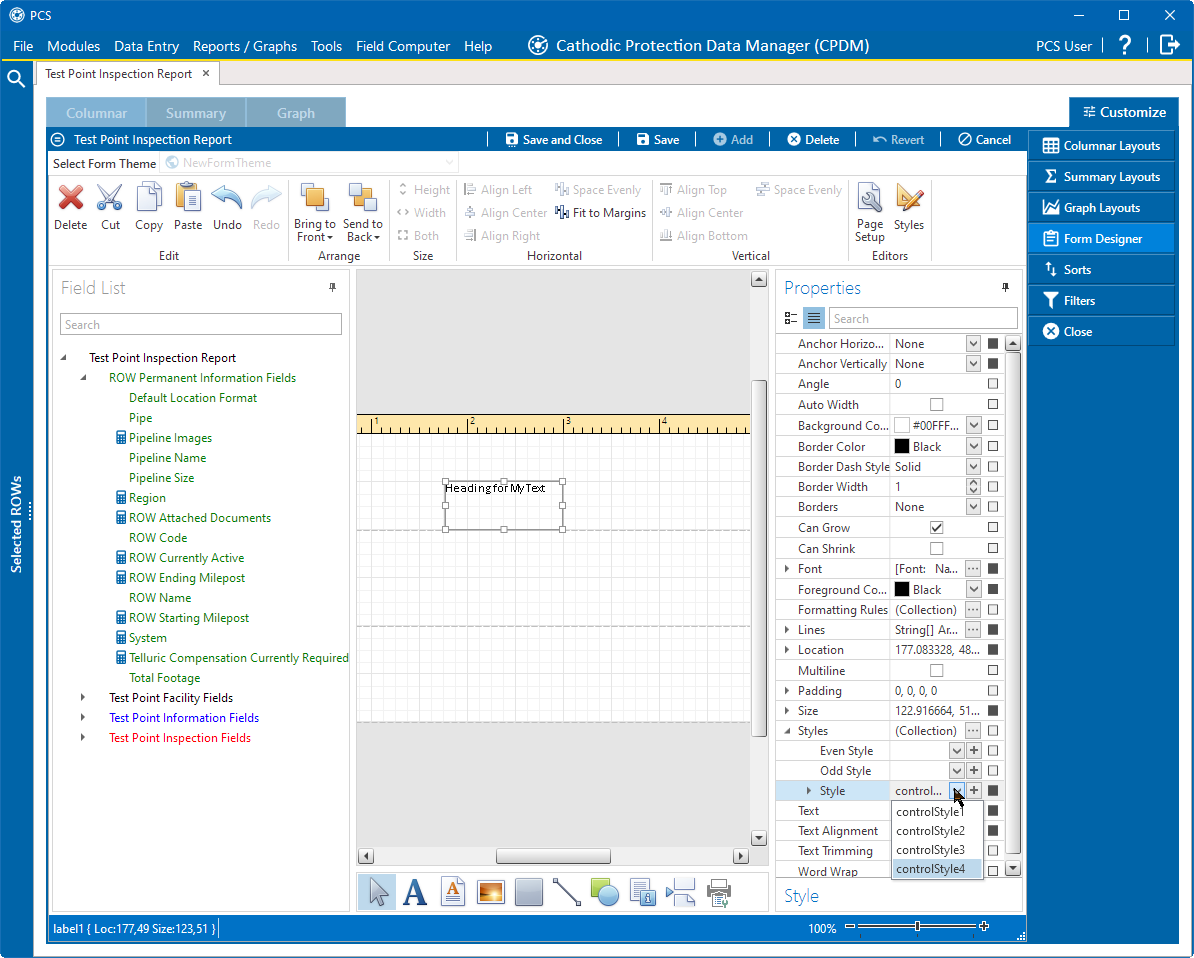
Selecting a Style for an Object in the Form
The style is applied to the object once you click anywhere outside of it.
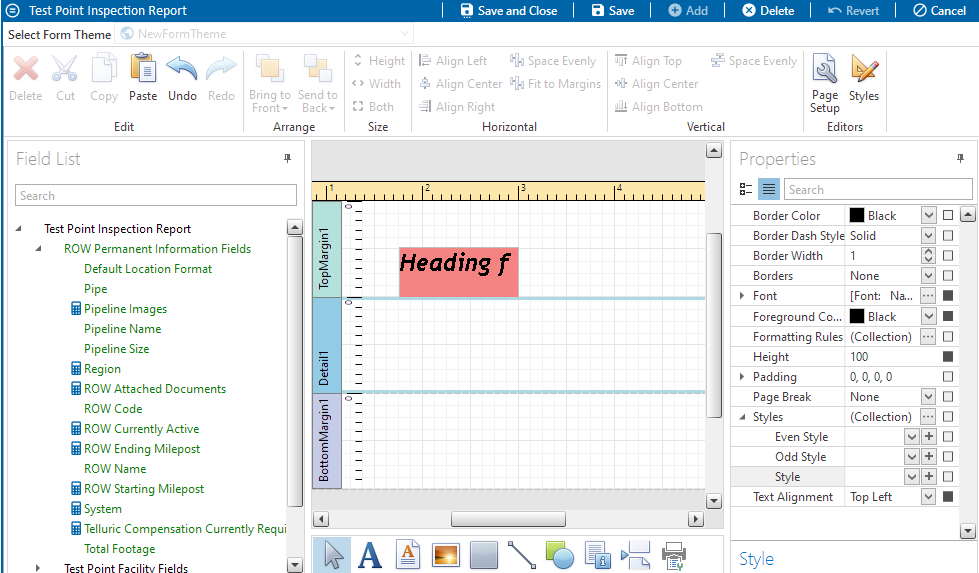
Style Applied to Object