Add Objects to a Margin or Section
The same data fields that can be shown in a data entry form can be added to a form report theme. In addition, labels, rich text fields, static pictures, lines, and shapes can be added to improve the design of the form report. panes can be added, which allow form report objects to be grouped together. Page breaks are available to control when objects should appear on different pages in a report, while PCS Report Info and Page Info controls can be added to the margins to provide contextual information for a report.
When an object is added to a detail section, When an object is added to a top or bottom margin, it will appear at the top or bottom of every page. If a data field is added to a margin, the information that appears in the margin on the report's page comes from the first record to appear on that page.
If a property can be reset, the check box will be filled in black. To reset a property, click the check box to the far right of the property name line.
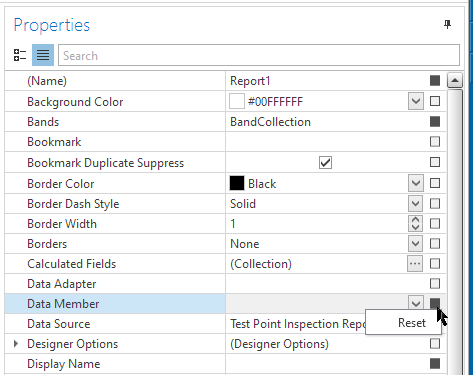
Resetting a Property
When you click on a Property, a definition of the property displays at the bottom of the screen. For example, Background Color has been selected in the following image. The definition for Background Color is shown in the pane below Properties. Use these definitions to understand each of the properties listed in this pane.
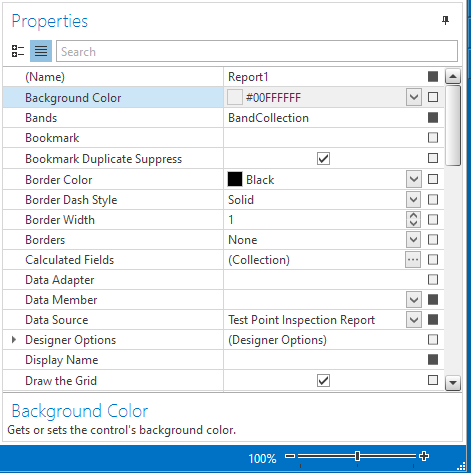
Property Descriptions
-
Add Data Fields. To add a field to the form report theme, find the desired field in the Field List pane. Click to select the field and drag it to the form report theme. A data field is added to the form report theme. The colors, borders, padding, font, size, location, and alignment of the field can be edited in the Properties pane, as well as what type of caption should accompany the field and if the field's text should wrap to the next line.
-
Add Images Fields. To add an images field to the form report theme, find the desired field in the Field List pane. Click to select the field and drag it to the form report theme. The images field is added to the form report theme. The caption, colors, borders, padding, font, size, location, and alignment of the field can be edited in the Properties pane, as well as which images from the images field should be included in the form report and how the images are displayed.
-
Add Labels, Pictures, Lines, and Shapes. To add a text label, rich text field, picture, shape, or line to the form report theme, click to select the desired control from the Control toolbar and drag it to the form report theme.
Depending on the control added, various properties can be edited in the Properties pane. A label's color, border, padding, angle, size, location, text alignment and trimming, label text, word wrap and multiline capabilities, and font style can be edited; a rich text field's color, border, padding, size, location, and font style can be modified; a picture's source file can be identified and its color, border, padding, size, location, and alignment can determined; and a shape and line's color, padding, border, size, and location can be set. A shape's angle and shape type can also be defined.
-
Rich Text Fields. Rich text fields allow you to load text from a formatted document into the control and retain formatting that exists in the file. To add a rich text field to the form report theme, click to select the control from the Control toolbar and drag it to the form report theme. Right-click on the rich text field and select Load File from the context menu. Navigate to and select the file that contains the formatted text and click Open. The text in the document loads into the rich text field control, retaining any compatible formatting.
A rich text field's color, border, padding, size, location, and font style can be modified in the Properties pane.
-
Add panes. panes allow form report objects to be grouped together. To add a pane to the form report theme, click to select the pane from the Control toolbar and drag it to the form report theme. Once added to the form report theme, edit the colors, borders, padding, size, and location of the pane in the Properties pane.
-
Add PCS Report Info. The PCS Report Info control is a text control that will display the company name (configured in Options) and the report title, selected ROWs, selected filters, and selected options for the report (configured when creating or editing the Form Report). This control is most often added to a form report margin.
To add the PCS Report Info to the form report theme, click to select the control from the Control toolbar and drag it to the theme. Once added to the form report theme, the PCS Report Info's color, border, padding, size, location, text alignment and trimming, word wrap, and font style can be modified.
-
Add Page Info. To add a page number, current date, user name, or page count to the form report theme, click to select Page Info from the Control toolbar and drag it to the theme. This control is most often added to a form report margin. Once added to the form report theme, the Page Info control's color, border, padding, size, location, text alignment, word wrap, and font style can be modified, as well as the page info format and starting page number.
-
Add Page Breaks. To add a page break to the form report theme, click to select the Page Break control from the Control toolbar and drag it to the theme. Anything added below the page break in the theme will be moved to the next page in the generated form report. The location of the page break can be modified in the Properties pane.
Once objects are placed on the form report theme, they are ready for editing, resizing, and rearranging.