Use Properties Pane to Modify a Report Form Page Setup
You can use the Properties pane for a form report theme to define the report watermark, all page settings, record printing options, the default appearance settings for objects added to the form, and the behavior of the form designer itself.
To modify the properties of a form report theme, with a form report theme selected in the Form Designer click in the gray edges outside of the workspace area. The form report theme's available properties load in the Properties pane. You will need to scroll down to see all of the properties.
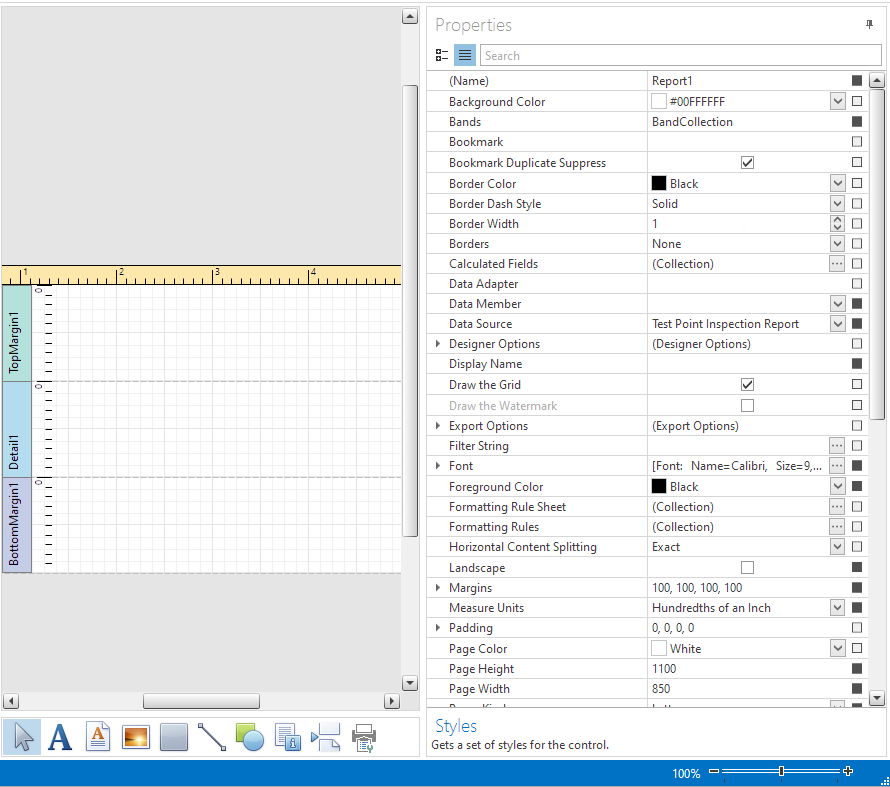
Properties Pane
If a property can be reset, the check box will be filled in black. To reset a property, click the check box to the far right of the property name line.
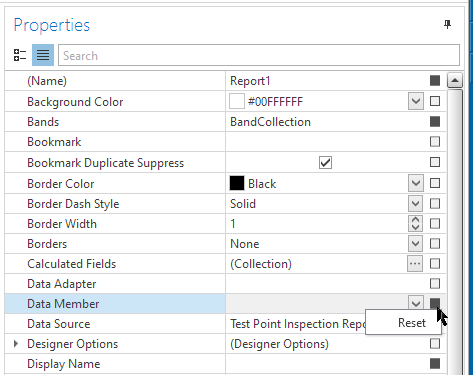
Resetting a Property
When you click on a Property, a definition of the property displays at the bottom of the screen. For example, Background Color has been selected in the following image. The definition for Background Color is shown in the pane below Properties. Use these definitions to understand each of the properties listed in this pane.
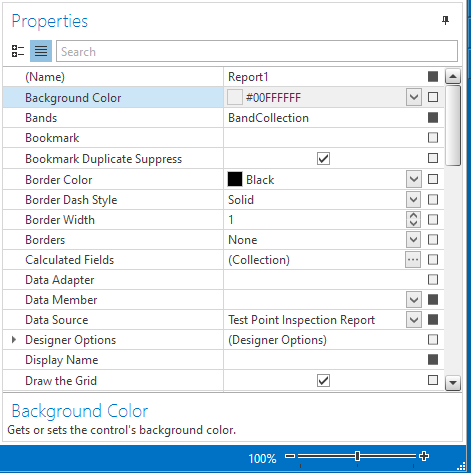
Property Descriptions
Appearance properties. When a report theme's default appearance settings are configured, any Control object added to the form will inherit that setting from the report theme unless it's configured elsewhere. If the same appearance setting is also changed in the margin properties (for Control objects placed in the Top or Bottom margins) or detail properties (for Control objects placed in the Detail section), they will inherit the margin or detail properties instead.
If the appearance setting is changed on the Control object itself, then any defaults set in the report theme, margins, or details are ignored and the Control object's settings are used.
The following default appearance settings are available for the report theme:
-
Background Color — to change the default background color for a Control object added to the form, select the Background Color drop-down. A grid of available and standard colors appears. Select a color from the grid or click
 More Colors to switch to the custom color selector and create a custom color by doing any of the following:
-
Select a color with the color slider and color field.
-
Enter a hexadecimal value in the field provided.
-
Select a color model in the drop-down provided and enter the following in the fields provided:
-
For RGB color model: Red (R), Green (G), Blue (B), and Alpha (A) values
-
For CYMK color model: Cyan (C), Magenta (M), Yellow (Y), and Black (K) values
-
For HSL color model: Hue (H), Lightness (L), Saturation (S), and Alpha (A) values
-
For HSB color model: Hue (H), Saturation (S), Brightness (B), and Alpha (A) values
-
Click
 to activate the color picker and move your mouse over a spot on your computer that has the color you wish to use. Click your mouse to select the color.
-
-
Border Color — to change the default color of the border for a Control object added to the form, select the Border Color drop-down. A grid of available and standard colors appears. Select a color from the grid or click
More Colors to switch to the custom color selector (see above for options). -
Border Dash Style — To change the default type of line used for a border of a Control object added to the form, select one of the following options from the Border Dash Style drop-down:
-
Solid : for a single solid line
-
Dash : for a consistent dashed line
-
Dot : for a consistent dotted line
-
Dash-Dot: for a line that alternates between dashes and dots
-
Dash-Dot-Dot: for a line that alternates between dashes and two dots
-
Double : for two solid lines
-
-
Border Width — to change the default thickness for a border of a Control object added to the form, enter a value in pixels in the Border Width text field.
-
Borders — to determine what sides of a object will have borders by default, click the Borders drop-down and complete the following steps:
-
Click All to have borders on all sides of the objects added to the form.
-
Click None to not have any borders on the objects added to the form.
-
Click
 at the top, bottom, left, or right edge of the border drop-down to toggle whether the top, bottom, left, or right border is applied to objects added to the form
-
-
Font — click the ellipsis (...) next to the Font field to open the Font window. Select a default font family, style, size, effect, and script for text-based objects added to the form and click OK.
-
Foreground Color — to change the default text color for text-based objects added to the form, select the Foreground Color drop-down. A grid of available and standard colors appears. Select a color from the grid or click
More Colors to switch to the custom color selector and create a custom color (see Background Color, above). -
Padding — to control the default amount of space between a Control object's contents and the border click the arrow next to Padding to expand the padding options. Enter values in pixels in the fields available.
-
Text Alignment — to set the alignment of the object's text, select one of the following values from the Text Alignment drop-down: Top Left, Top Center, Top Right, Middle Left, Middle Center, Middle Right, Bottom Left, Bottom Center, Bottom Right, Top Justify, Middle Justify, and Bottom Justify.
Appearance properties. The following properties are available to modify for the report's appearance:
-
Page Color — to change the background color of the page, select the Page Color drop-down. A grid of available and standard colors appears. Select a color from the grid or click
More Colors to switch to the custom color selector and create a custom color (see Background Color, above). -
Style Sheet — click the ellipsis (...) next to the Style Sheet field to open the Styles Editor. Add, edit, or remove styles defined in the form report theme as desired. Refer to Create and Manage Form Theme Styles for more information about form report theme styles.
-
Watermark — double-click the Watermark field to open the ribbon's Watermark window and fill out the Text Watermark, Picture Watermark, Position, and Page Range options as desired. Refer to Use Properties Pane to Modify a Report Form Page Setup for instructions detailing the watermark properties available from the ribbon.
-
To edit the watermark options in the Properties pane, click to expand the Watermark field and modify the Font, Foreground Color, Image, Image Alignment, Image Tiling, Image Transparency, Image View Mode, Page Range, Show Behind, Text, Text Direction, and Text Transparency properties.
-
Behavior properties. Behavior properties determine the units of measurement used in the form report theme, as well as how the form report should handle objects that extend beyond the page margins. The following behavior properties are available for editing:
-
Horizontal Content Splitting — to determine what should happen when a horizontal page break would naturally occur in the middle of an object or group of objects, select the Horizontal Content Splitting drop-down and choose one of the following options:
-
Exact — allows a page break to occur in the middle of an object or group of objects; objects or groups of objects that are split in two so they can continue on the next page.
-
Smart — whenever possible, moves the entire object or group of objects to the next page if a page break would have occurred in the middle of the object(s).
-
Measure Units — to change the units of measurement used in the form report theme, select an option from the Measure Units drop-down.
-
Vertical Content Splitting — to determine what should happen when a vertical page break would naturally occur in the middle of an object or group of objects, select the Vertical Content Splitting drop-down and choose one of the following options:
-
Exact — allows a page break to occur in the middle of an object or group of objects; objects or groups of objects that are split in two so they can continue on the next page.
Design properties. Design properties determine how objects in the form report theme are displayed and used in the designer. The following Design properties are available:
-
Display Name — to change the name of the form report theme, replace the text in the (Name) field with a new name.
-
Designer Options — to show or hide popup hints and warnings in the Report Designer. Optins include:
-
Show Designer's Hints
-
Show Export Warnings
-
Show Printing Warnings
-
-
Draw the Grid — to show or hide the grid on the designer, click to select or clear the Draw the Grid check box, respectively.
-
Draw the Watermark — if a Watermark has been added, this option gets or sets a value indicating whether or not to draw a watermark at design time.
-
Snap Grid Size — to change the amount of space between the grid lines, select the text in the Snap Grid Size field and enter a new value.
-
Snap to Grid — to allow objects to snap to the grid when moving or resizing, click to select the Snap to Grid check box. To disable this feature, click to clear the check box.
-
Snapping Mode — specifies the mode in which report elements are snapped to each other when they are re-sized or being relocated.
Page Settings properties. These properties define the paper's size, margins, and orientation. Unlike the page setup options found in the ribbon, the Properties pane also allows you to use custom page sizes. Custom page sizes can be predefined sizes found in a local printer or defined manually in the Properties pane.
-
Landscape — select the Landscape check box to orient the page to landscape mode or clear the check box to orient the page to portrait mode.
-
Margins — to set amount of space at the edge of the paper to be reserved for the margins, click the arrow next to Margins to expand the Margins options. Enter values in hundredths of an inch in the fields available.
-
Page Height — to define the paper's height for a custom paper size, enter a height in the field provided. This field only enabled if a custom Paper Kind is selected.
-
Page Width — to define the paper's width for a custom paper size, enter a width in the field provided. This field is only enabled if a custom Paper Kind is selected.
-
Paper Kind — to set the paper size for the form report, select a Paper Kind from the drop-down. The Page Height and Page Width fields update to match the height and width of the selected paper kind, however the Page Height and Page Width fields are only editable if a Custom paper kind was selected.
-
Paper Name — to use a paper size that's been predefined in printer preferences for the printer selected in the Printer Name field, enter the name of the paper size exactly as it's defined in the printer's printer preferences.
-
Printer Name — to use the paper sizes predefined in a specific printer's printer preferences, select the desired printer from the Printer Name drop-down. The Printer Name field is used alongside the Paper Name field when Custom paper kind was selected.